
Every IPTV provider says it is fast. The only test that matters is how it performs on your TV, on your internet, at the hour you watch. You can measure that yourself in about 20 minutes during a free test — no technical knowledge needed. This IPTV speed test checks the things that matter at home: real speed on the TV, channel switching, live sports and the evening peak.
Why test? A service that streams perfectly at noon can buffer at 9 p.m., when everyone is online. Testing at the right moment saves you from paying for months you will regret.
Before you start the IPTV speed test
Two minutes of preparation make your IPTV speed test results far more reliable:
- Test on the screen you will really use. A phone next to the router says little about the TV in the bedroom.
- Pause big downloads on other devices, so you measure the service and not a game update.
- Use the same app you plan to keep, such as IPTV Smarters Pro or IBO Player Pro, logged in with your trial details.
- Write the results down as you go; the scorecard below makes the decision easy.
The 7-step IPTV speed test
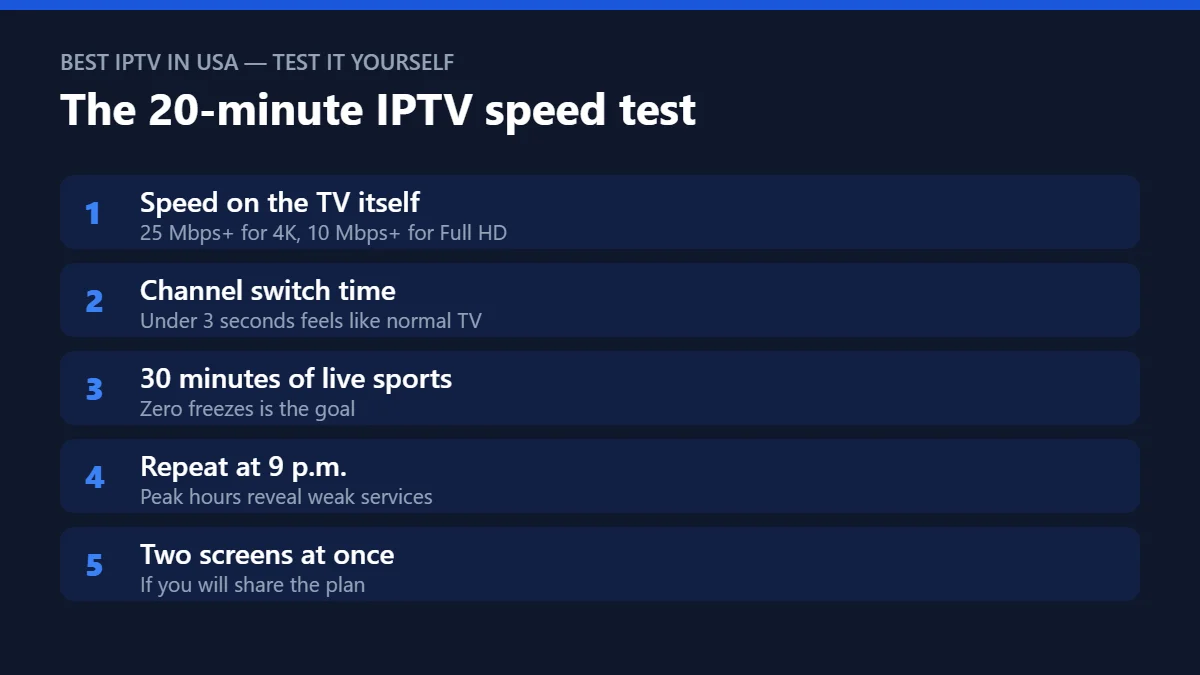
1. Measure the speed on the TV itself
Run a speed test in the TV or streaming box’s browser or a speed-test app such as Speedtest by Ookla. Aim for 10 Mbps or more for Full HD and 25 Mbps or more for 4K, per screen.
2. Time the channel switch
Change channels ten times and count the seconds until the picture appears. Under 3 seconds feels like regular TV; over 6 seconds gets frustrating fast.
3. Watch 30 minutes of live sports
Fast motion is the hardest content to stream. Count every freeze or quality drop. Zero is the goal; one short drop is acceptable; repeated freezes are a fail.
4. Run an IPTV latency test: check the live delay
Compare the match with a live score app. Online streams are usually some seconds behind live TV; the important thing is that the delay stays the same instead of growing during the match.
5. Repeat everything at 9 p.m.
Evening is peak time for both your internet provider and the IPTV servers. A service that passes at noon and fails at 9 p.m. is not the right one.
6. Open a movie and skip around
Start a film on demand, jump forward 20 minutes, then back. It should resume within a few seconds.
7. Test two screens at once
If you plan to share the subscription, play on two devices at the same time. Both should stay smooth.
What your IPTV speed test numbers mean
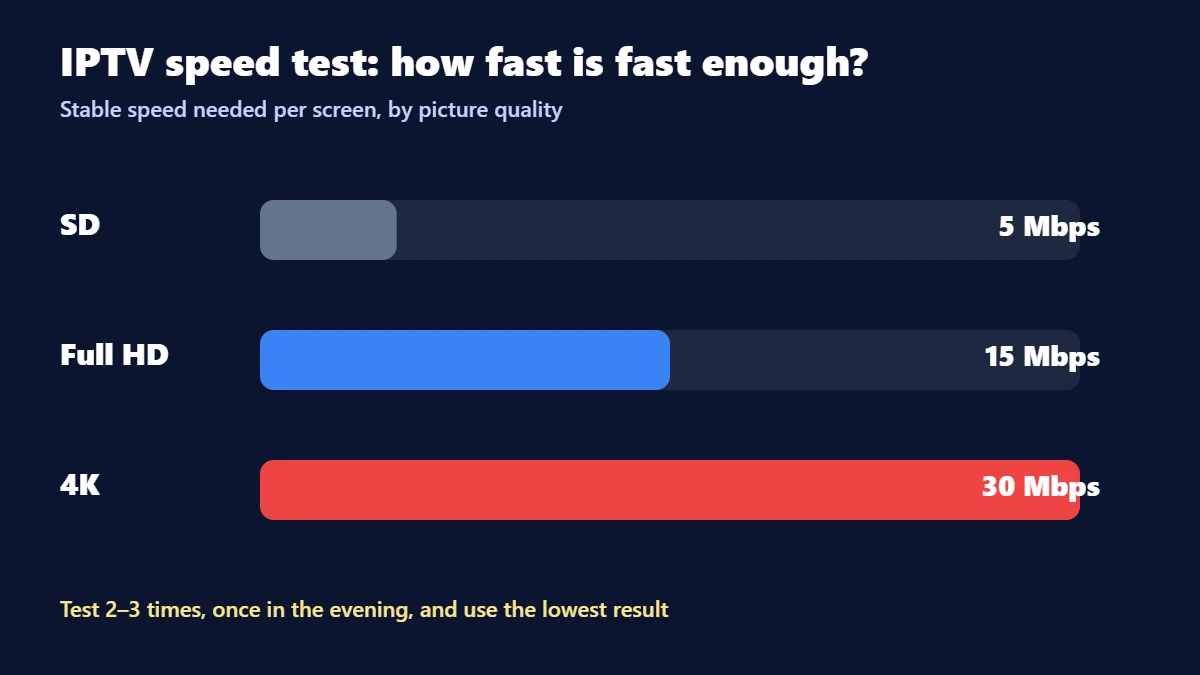
The speed you need depends on the picture quality and on how many screens play at the same time. Use these figures, per screen, when you read your IPTV speed test result:
| Picture quality | Stable speed per screen | Comfortable target |
|---|---|---|
| SD | 3–5 Mbps | 5 Mbps |
| Full HD | 10 Mbps | 15 Mbps |
| 4K | 25 Mbps | 30 Mbps+ |
“Stable” is the key word: a connection that jumps between 80 and 8 Mbps will buffer more than one that stays at 20. Run the test two or three times, including once in the evening, and use the lowest result.
Your scorecard
| Test | Pass | Fail |
|---|---|---|
| Speed on the TV | 25 Mbps+ (4K) / 10 Mbps+ (HD) | Below the target in the evening |
| Channel switch | Under 3 s | Over 6 s |
| 30 min of sports | 0–1 short drop | Repeated freezes |
| Live delay | Stays stable | Keeps growing |
| 9 p.m. repeat | Same result as daytime | Noticeably worse |
| Movie seeking | Resumes in a few seconds | Long loading or errors |
| Two screens | Both smooth | One freezes |
Six or seven passes: you found a good match for your home. Four or fewer: fix your connection first (step 1) or keep looking.
Read the real numbers inside your player
A speed test website tells you what your internet can do, which is only half of an IPTV speed test. It does not tell you what the IPTV stream is actually doing. For that, look inside the player itself. Most good players have a hidden stats screen, and it is the most honest IPTV speed test there is, because it measures the exact channel you are watching.
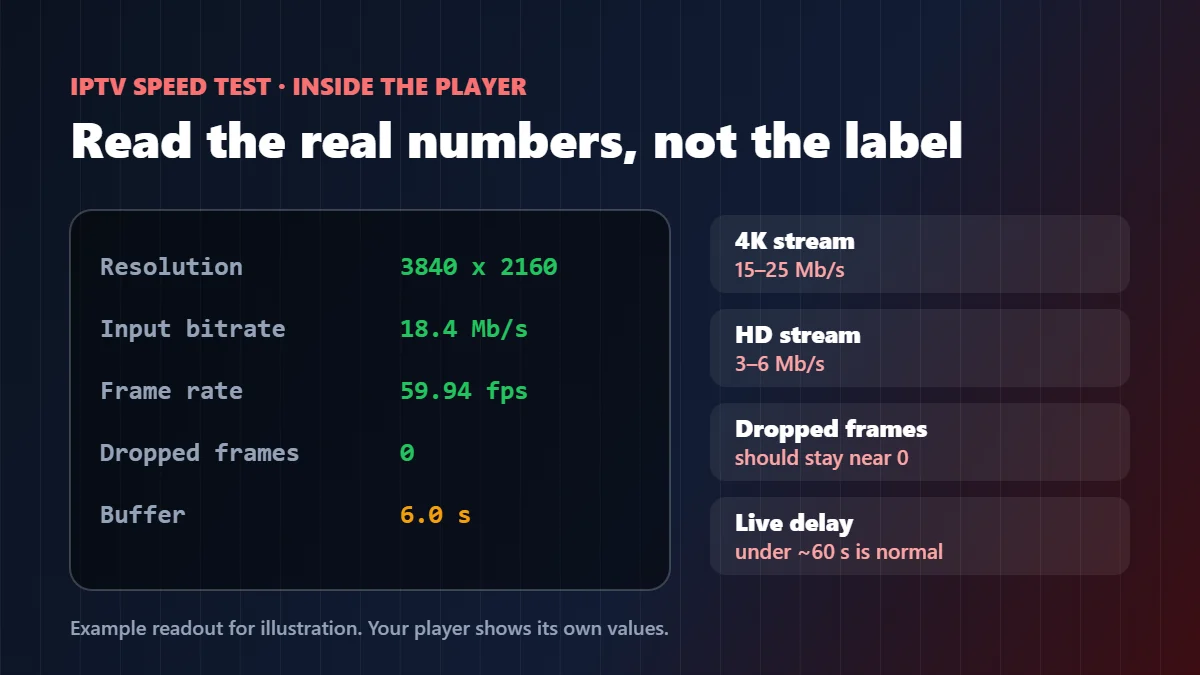
- VLC (Windows, Mac, Android): while a channel plays, open Tools → Media Information → Statistics. Watch the input bitrate and the “lost” or “dropped” frames counters.
- Kodi: during playback, open the player process info (the O key on a keyboard) to see the codec, resolution and dropped frames.
- TiviMate, Smarters and most TV players: look for an Info or Stream info option in the playback menu. It usually shows resolution and frame rate, sometimes the bitrate.
| What you see | Healthy | What it means if not |
|---|---|---|
| Resolution on a “4K” channel | 3840 x 2160 | 1920 x 1080 or less: the channel is not real 4K |
| Bitrate on a 4K channel | Roughly 15–25 Mb/s | Far lower: heavy compression, soft picture in fast motion |
| Bitrate on an HD channel | Roughly 3–6 Mb/s | Jumping to near zero: the stream is starving, expect a freeze |
| Dropped frames | At or near 0 | Climbing fast: your device is struggling, not the internet |
| Live delay vs TV | Usually under about a minute | Several minutes behind: bad for sports with spoilers on your phone |
That last row is your IPTV latency test in practice, and it takes one minute: put the same game on the IPTV channel and on a phone app or radio, and note how far behind the picture is. A few seconds to under a minute is normal for streaming. Anything much longer will annoy you every time your phone buzzes with a goal.
Why the device matters as much as the speed
We see this every week: two homes on the same internet plan, same provider, same channel, and one gets a perfect picture while the other stutters. The difference is almost always the box doing the decoding.
Older sticks and budget Android boxes can struggle with 4K at 60 frames per second, even on a fast connection. Their processor runs hot, frames start dropping, and it looks exactly like buffering. That is why the dropped-frames number above is so useful: if it climbs while the bitrate stays steady, the internet is fine and the device is the bottleneck.
So run your IPTV speed test on the exact device you plan to watch on, in the room where it lives. A test on a laptop next to the router tells you nothing about the old stick behind the bedroom TV. If the device is the weak link, our guides for Firestick and Android TV explain which settings help, and when a newer box is simply the better fix.

The 2-minute Wi-Fi vs cable comparison
If your IPTV speed test results are borderline, run this before blaming anyone. Play the same 4K channel for one minute on Wi-Fi and note the bitrate and any pauses. Then plug in an Ethernet cable (or move the router closer) and repeat the same IPTV speed test.
If the cable version is smooth and the Wi-Fi version is not, the provider is fine and your fix is a cable, a mesh system or a better spot for the router.
If both stutter in the same way at the same moment, the problem is further up the line, and that is exactly the evidence a good support team needs from you. Our buffering fix guide explains the next steps, and our IPTV service guide shows where each kind of failure starts.
IPTV speed test failed? Check your side first
- Slow speed on the TV only: the Wi-Fi signal is weak where the TV is — try Ethernet or move the router.
- Fails only in the evening: someone at home may be downloading or streaming too.
- Slow channel switch on an old device: clear the app cache or try a newer player.
Still buffering? Our IPTV buffering fix finds the cause in 2 minutes and walks you through 6 fixes, from Wi-Fi to the provider.
What to send support when the test fails
A message that says “it buffers” is hard to fix. A message with five facts from your IPTV speed test usually gets solved in one reply. When your IPTV speed test shows a problem, send your provider this:
| Detail | Example | Why support needs it |
|---|---|---|
| Time and time zone | 9:40 p.m. Eastern | Shows whether it is a prime-time load problem |
| Channel name | The exact channel from the list | One channel failing points to the source, not the servers |
| Device and app | Fire TV Stick 4K, TiviMate | Some problems only happen on one player |
| Speed on the device | 42 Mbps on Wi-Fi | Rules your internet in or out in seconds |
| What you saw | Freeze every 2 minutes, bitrate drops to 0 | Tells a stream problem from a decoding problem |
A photo of the stats screen from the section above is worth more than a long description. With those details, a good support team can tell you within minutes whether the fix is on their side or yours.
When to run the IPTV speed test again
One good result is not a guarantee forever. Internet plans change, routers age, and new devices join the network. We suggest repeating the short version of this test in four situations:
- Before a big event. Run it the evening before a final or a fight night, at the same hour, so there are no surprises.
- After changing anything at home. A new router, a new TV, a new mesh system or a new internet plan can all change the result.
- When the whole family is home. Holidays and school breaks put more devices on the same connection.
- Before renewing a long plan. Ten minutes of testing before you pay for another year is time well spent.
The more you test, the faster you will spot what is normal for your home, and the easier it becomes to tell a real service problem from a busy evening on your own Wi-Fi.
Keep a note of your results each time: the date, the hour, the device, the speed and how the live game looked. After two or three rounds of this IPTV speed test you will have your own baseline. Then, when something feels off, a quick IPTV latency test and one look at the stats screen will tell you in two minutes whether today is different, and who should fix it. That small habit saves more frustration than any upgrade.
Quick questions
How long is the Marinios test?
24 hours — enough to run this full test, including the evening peak. Get your free 24-hour trial on WhatsApp.
What is a good IPTV speed test result?
A stable 25 Mbps or more per 4K screen, channel switches under 3 seconds, and no repeated freezes during 30 minutes of live sports at peak time.
What speed do I need for two 4K TVs?
Around 50 Mbps of stable speed, plus headroom for phones and other devices.
How do I run an IPTV latency test?
Play the same live event on the IPTV channel and on another source, like a phone app or the radio, and compare. Under about a minute behind is normal for streaming.
Is a website speed test enough to judge an IPTV service?
No. It only measures your internet. Check the bitrate and dropped frames inside your player during live sports at peak time to see how the IPTV stream itself behaves.
Speedtest is a trademark of Ookla, LLC. IPTV Smarters and IBO Player Pro are trademarks of their respective owners. Marinios IPTV is not affiliated with or endorsed by them.