
IPTV buffering is the number one reason people give up on a service: the spinning wheel in the middle of a goal, the picture that freezes every few minutes on game night. The good news is that most IPTV buffering has a clear cause, and you can find it in about 15 minutes without being a tech expert. This guide shows how to tell where the problem comes from, then the exact fixes for your Wi-Fi, your device, your app and your provider, with a quick table you can follow from top to bottom.
Quick answer: Most IPTV buffering comes from the home connection, not the channel. Use a cable or 5 GHz Wi-Fi, restart the device, clear the app cache and pick a lower quality version of the channel. If every channel buffers on every device every evening, the provider is overloaded.
Key takeaways
- Most IPTV buffering comes from the home connection (weak Wi-Fi, other devices downloading), not from the channel itself.
- One quick test tells you where to look: does it buffer on every channel or only one, and on every device or only one?
- A cable or 5 GHz Wi-Fi, a lower quality version of the channel and a cleared app cache fix most cases.
- If it buffers on every channel and every device at prime time, the provider is the problem. Test another service with a free trial.
In this guide
- Is IPTV reliable, or does it keep cutting out?
- Why does IPTV buffering happen?
- Find the cause of your IPTV buffering in 2 minutes
- Fix 1: Give the TV a stronger connection
- Fix 2: Restart and free up your device
- Fix 3: Clean up the IPTV app
- Fix 4: Switch the channel version
- Fix 5: Check the stream format in your playlist
- Fix 6: When the provider is the problem
- The best IPTV with no buffering: what to look for
- Quick questions
Is IPTV reliable, or does it keep cutting out?
A good IPTV service is as reliable as cable on a decent connection; when it keeps cutting out, the cause is either an overloaded provider or the connection inside the home. This is the question we get most on WhatsApp, usually from people burned by a cheap service before, so here is the honest answer.
On our side, Marinios IPTV runs on servers we choose for stability first, with an update every month and new 4K and 8K channels added regularly. That removes the most common cause of cutting out: a provider with too many viewers on too few servers. What no provider can control is your Wi-Fi, your device and your internet plan, which is why the rest of this guide exists. Test it yourself on a live game during the free 24-hour trial: that tells you more than any promise.
Why does IPTV buffering happen?
Live IPTV streams arrive as a constant flow of small video pieces. Your app keeps a few seconds in reserve (the buffer). When pieces arrive slower than the app plays them, the reserve runs out and you see the spinning wheel. That can happen at four points:
- Your internet and Wi-Fi: not enough speed reaches the TV, or the signal drops for a second.
- Your device: an old stick or TV struggles with 4K or HEVC streams, or its memory is full.
- Your app: a full cache, the wrong player settings or an outdated version.
- The provider: overloaded servers at prime time, or one channel source with a problem.
The fixes are different for each point, so the first job is to find which one you are dealing with.
Find the cause of your IPTV buffering in 2 minutes
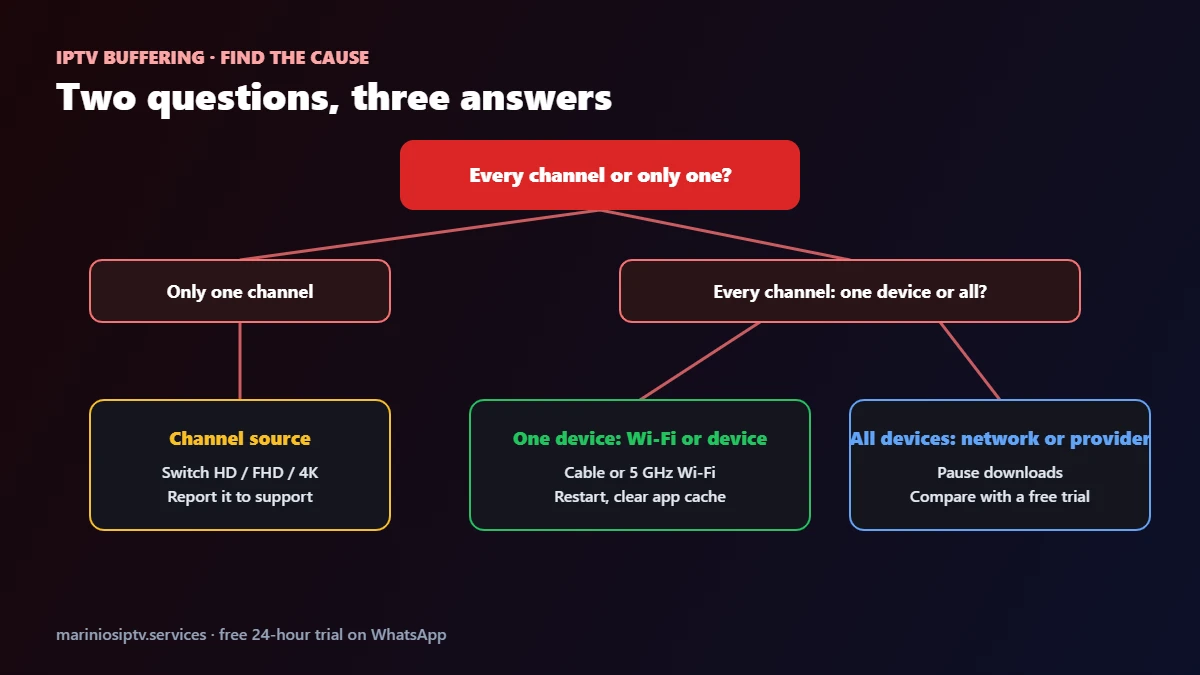
Answer two questions while the buffering is happening:
| What you see | Most likely cause | Go to |
|---|---|---|
| Only one channel buffers, others are fine | That channel’s source or quality version | Fix 4: switch the version |
| Every channel buffers on one TV, but the phone is fine | That TV’s Wi-Fi signal or the device | Fixes 1, 2 and 3 |
| Every channel buffers on every device, only in the evening | Home network busy, or provider overloaded | Fixes 1 and 6, then test the provider |
| Every channel buffers on every device, all day | Internet plan too slow, or provider problem | Speed test, then fix 6 |
| Movies play fine, live TV buffers | Live server load at that moment | Fix 4, then fix 6 |
Fix 1: Give the TV a stronger connection
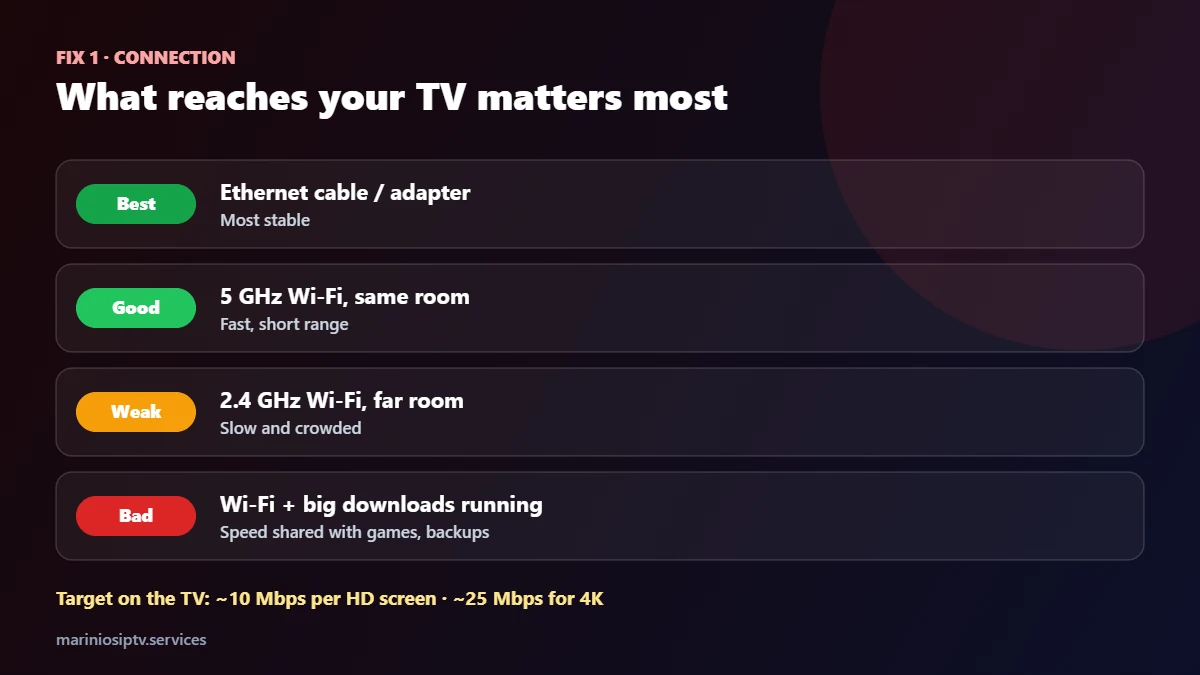
This single change solves the largest share of IPTV buffering. Wi-Fi loses speed through walls and floors, and the TV is often the furthest device from the router.
- Use a cable if you can. On a Firestick, an Ethernet adapter costs little and removes most Wi-Fi drops.
- Use the 5 GHz network when the TV is in the same room or one room away from the router; 2.4 GHz reaches further but is slower and more crowded.
- Move the router higher and away from metal furniture, or add a mesh point near the TV.
- Pause big downloads (game updates, cloud backups) during live games.
Then measure on the TV itself, not on your phone. A free tool such as Speedtest by Ookla works; about 10 Mbps per HD screen and 25 Mbps for 4K is comfortable. Our 20-minute IPTV speed test explains what else to measure, such as channel switch time.
Fix 2: Restart and free up your device
- Restart the device fully, not just the app. On a Fire TV Stick, hold Select and Play for five seconds.
- Free storage: uninstall apps you never use. Sticks with almost no free space slow down.
- Update the system in the device settings.
- Check 4K support: a basic HD stick or an older TV may stutter on 4K channels. Pick the FHD version instead.
Not sure your stick is the right one? Our best IPTV for Firestick guide explains which models handle 4K and which can install IPTV apps.
Fix 3: Clean up the IPTV app
An app that has run for months collects a large cache, and on small sticks that alone can cause IPTV buffering.
- Clear the cache: on Fire TV and Android TV, Settings → Applications → Manage Installed Applications → your player → Clear cache. Do not clear data unless you are ready to log in again.
- Update the player from its official source.
- Try the other player engine if your app offers one (IPTV Smarters Pro has a setting for the player). Some streams play smoother with a different engine.
- Shorten the TV guide to a few days on older devices; a huge guide slows everything down. See our EPG guide.
Comparing apps? Our IPTV player guide covers IPTV Smarters Pro, IBO Player Pro and others.
Fix 4: Switch the channel version
Many channels appear several times with tags such as HD, FHD or 4K. They show the same content at different bitrates. If one version shows IPTV buffering, try the lower one: a smooth FHD picture beats a 4K picture that stops every minute. If only one channel buffers and every other channel is fine, the problem is that source, not your setup. Tell your provider which channel and at what time.
Our IPTV channels guide explains quality tags and how to save the version that works as a favorite.
Fix 5: Check the stream format in your playlist
If you use an M3U link, the end of the link often sets the stream format, for example output=ts or output=m3u8. Some devices play one format more smoothly than the other. Ask your provider for the alternative link and compare on the same channel. Our M3U playlist guide shows every part of the link.

Fix 6: When the provider is the problem
If you have done fixes 1 to 5 and the IPTV buffering continues on every channel and every device, especially every evening, the service itself is overloaded. No setting on your side can fix that. Signs that point to the provider:
- Buffering starts at the same time every evening, on a cable connection.
- Movies on demand also stall, not only live channels.
- Support blames your internet without asking a single question.
The fair test is to compare. Run a free 24-hour trial of another service on the same TV, at the same hour, and watch the same game. Our IPTV service providers guide lists the seven questions that separate a stable provider from a weak one.
The best IPTV with no buffering: what to look for
No honest provider can promise zero buffering on every connection, because your Wi-Fi is part of the chain. What you can expect from a good service:
| Check | Good sign |
|---|---|
| Prime-time live game, wired connection | 30 minutes with no freeze |
| Several quality versions per channel | HD, FHD and 4K so you can pick what your line handles |
| Channel switching | Under 3 seconds |
| Support | Asks which channel, which device and what time before answering |
| Trial | Long enough to cover an evening |
That is how we set up Marinios IPTV: 55,000 live channels in HD and 4K with several versions of the main channels, 250,000 movies and series, a TV guide and 24/7 support on WhatsApp, so a buffering report gets a real answer. Plans start at $15 for one month or $5 a month on the 12-month plan; see the IPTV subscription guide. If your TV uses IBO Player Pro and it asks for activation after its 7-day trial, we can activate it for €9.99 on WhatsApp.
Test us free for 24 hours on WhatsApp at the time your current service buffers, and compare.
Quick questions
Why does my IPTV keep buffering?
Most often the Wi-Fi signal at the TV is too weak or the home network is busy. If it buffers on every channel and every device even on a cable, the provider’s servers are overloaded.
How do I stop IPTV buffering on Firestick?
Use 5 GHz Wi-Fi or an Ethernet adapter, restart the stick, clear the app cache and pick the FHD version of the channel instead of 4K.
What internet speed do I need to stop IPTV buffering?
About 10 Mbps per HD screen and 25 Mbps per 4K screen, measured on the TV in the evening, with some headroom for other devices.
Does a VPN stop IPTV buffering?
Usually not; a VPN adds a step and can slow streams. It may help only if your internet provider slows down video traffic. Test with and without it.
Why does IPTV buffering happen only at night?
Evenings are the busiest time for home networks and for providers. Pause downloads at home; if it still buffers every evening on a cable, compare another service.
Is there IPTV with no buffering at all?
No one can guarantee it on every connection. Look for a service that stays smooth at prime time on your own line during a free trial.
To see where buffering starts, our IPTV service guide breaks the path down into 5 stops, from the server to your screen.
Buffering during the big game? Our IPTV for sports guide has a 5-step game-day setup.
Fire TV and Firestick are trademarks of Amazon.com, Inc. or its affiliates. Android TV, Google TV and Google Play are trademarks of Google LLC. Speedtest is a trademark of Ookla, LLC. IPTV Smarters and IBO Player Pro are trademarks of their respective owners. Marinios IPTV is not affiliated with or endorsed by them.