
Got an IPTV with adult channels included? Many IPTV plans include adult categories by default. For adults living alone that is simply a choice; in a home with children, teenagers or guests, it is something to lock down on day one. The good news: it takes about five minutes per device, and once it is done you can stop worrying about it. Below is the checklist we give every family that sets up IPTV with adult channels on a shared TV.
View Plans & Prices – From $15
The key idea: do not just lock adult categories — hide them where your app allows it, and protect the app itself with the device’s own PIN. Two layers are much harder to get around than one.
In this guide
- The 5-minute checklist for IPTV with adult channels
- Why one PIN is not enough
- Device locks on Firestick, Android TV and Samsung
- Locks on Apple TV, LG and Roku
- Forgot the adult PIN? What to do
- House rules that work better than any PIN
- Which protection fits your home?
- Prefer no adult content at all?
- Quick questions
The 5-minute checklist for IPTV with adult channels
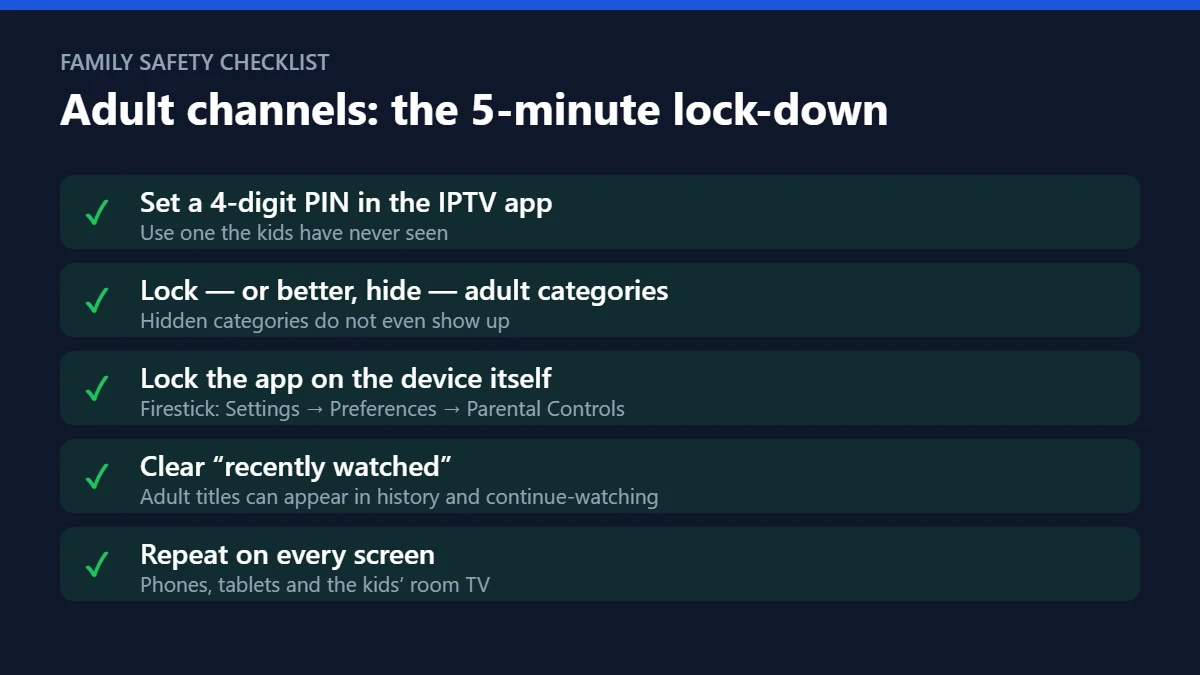
1. Set a PIN in the IPTV app
Most IPTV players, including IPTV Smarters, have a Parental Control section in their settings. Create a 4-digit PIN that is not a birthday or 1234, and that the kids have never watched you type.
2. Lock or hide the adult categories
In the same menu, select every adult category — live channels, movies and series are often separate lists — and lock them. If your player offers to hide categories, use that too: what does not appear in the list cannot be tapped by curiosity.
3. Lock the app on the device
On Firestick, open Settings → Preferences → Parental Controls and set a PIN for opening apps. Android TV and smart TVs offer similar app locks or restricted profiles. This protects you even if someone finds a way around the app’s own lock.
4. Clean the history
“Recently watched” and “continue watching” rows can show adult titles on the home screen. Clear them once, and check that the app does not show history on the start page.
5. Repeat on every screen
The lock lives in each app and each device, not in your account. Phones, tablets and the TV in the kids’ room each need the same setup.
Why one PIN is not enough
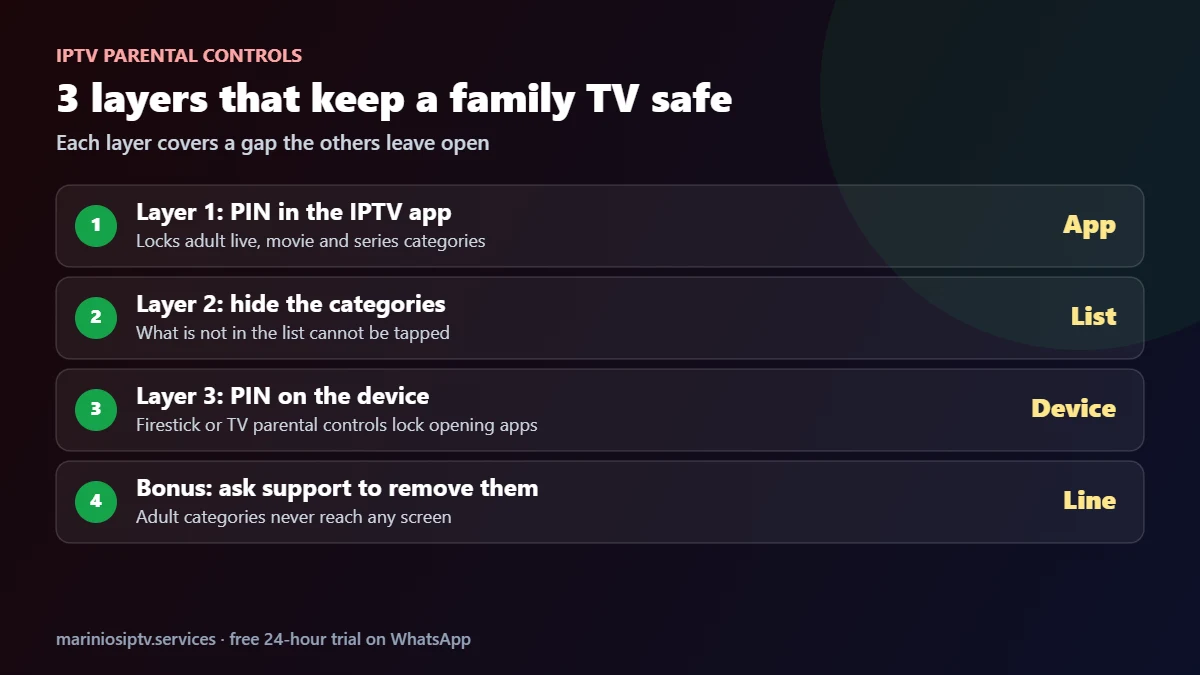
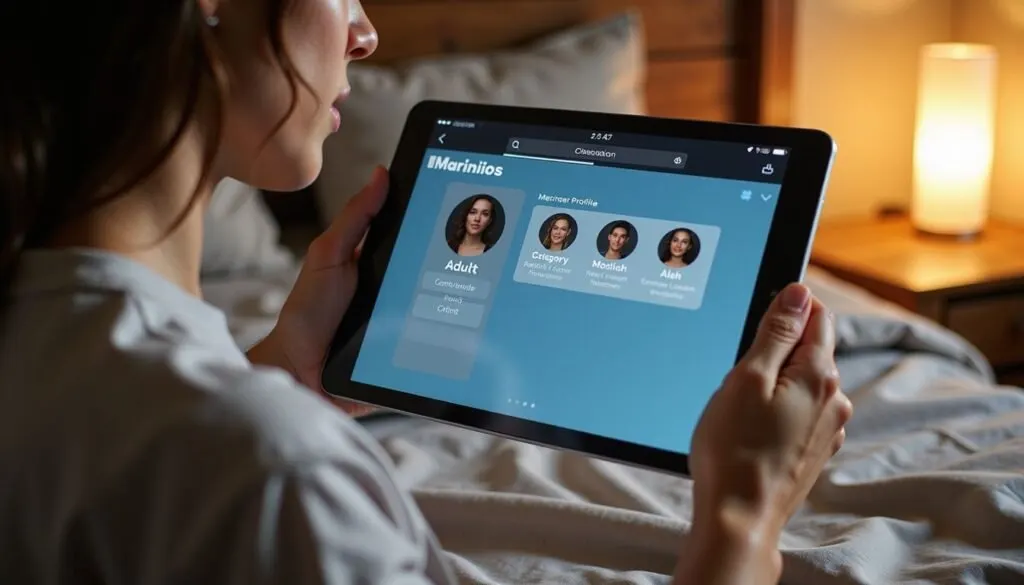
A single app PIN fails in predictable ways: someone watches you type it, the app is reinstalled, or a second player app is added to the same TV. Layers solve that. The app PIN stops casual browsing, hidden categories remove temptation, and the device PIN stops new apps from being installed or opened. For general advice on screen-time rules and age ratings, Common Sense Media has clear guides for parents.
Device locks on Firestick, Android TV and Samsung
The device lock is the layer most people skip, and it is the one that matters most with teenagers. Here is where to find it on the screens families use most:
- Amazon Firestick: Settings → Preferences → Parental Controls. Turn them on, create a PIN, and require it to open apps and to make purchases.
- Android TV and Google TV: create a kids profile or a restricted profile, then choose which apps it can open. Leave the IPTV player out of the kids profile if adult categories are on your line.
- Samsung Smart TV: look for the app lock in the settings (often under General or Broadcasting), set the TV PIN, and lock the IPTV player. Our Samsung IPTV guide shows where the player lives.
- Phones and tablets: use the built-in screen-time or family controls to block the player on a child’s device.
Do this once on every screen and an IPTV with adult channels is as safe for a family as a cable box with parental locks, and usually easier to manage.
Locks on Apple TV, LG and Roku
Families with IPTV with adult channels rarely have just one kind of screen. If your IPTV with adult channels runs on more than a Firestick, here is where each system keeps its own lock. Menu names change a little between versions, so look for words like Restrictions, Parental controls or Lock.
| Device | Where to look | What to lock |
|---|---|---|
| Apple TV | Settings → General → Restrictions | Turn on a passcode, then restrict app installs and content |
| LG Smart TV | Settings → General → Safety (or System → Safety) | Set a PIN and lock the IPTV player app |
| Roku | Your Roku account online → PIN preference | Require a PIN for purchases and new channels |
| Phones and tablets | Screen Time (iPhone) or Family Link (Android) | Limit which apps a child’s device can open |
The pattern is the same everywhere: one lock inside the IPTV app, one lock on the device. For the full setup on each device, see our guides for Apple TV, LG Smart TV and Roku.
Forgot the adult PIN? What to do
For IPTV with adult channels, this is the other half of the messages we get: a parent set a PIN months ago, and now nobody remembers it. Do not panic, and do not share your login in a forum to ask for help. Try these in order:
- Check the app’s settings first. Some players let you change the PIN if you still know the old one, and some show a reset option.
- Look at the player’s official help page. The reset method differs from app to app.
- Reinstall the player as a last resort. Write down your login details before you do, because a clean install removes them. You will then set a new PIN from the start.
- Ask your provider. If the adult category is controlled on the provider’s side, support can tell you what to change.
When you set the new PIN for your IPTV with adult channels, store it somewhere the adults in the house can find it, such as a password manager, not on a sticky note on the TV.
House rules that work better than any PIN
Locks matter, but the families who tell us they never had a problem with IPTV with adult channels usually did three simple things as well. None of them are technical.


- One person owns the settings. Decide who changes PINs and categories, so nobody “fixes” a lock by accident while looking for a sports channel.
- Kids get their own profile or device where possible. A tablet set up for a child is easier to protect than a shared living-room TV with every app on it.
- Check after every update. App updates and reinstalls can reset settings. A 30-second look at the hidden categories after an update saves a lot of awkward moments.
Teenagers are the hardest group, honestly. They know the remote better than the parents do. That is exactly why the two-layer approach in this guide matters for IPTV with adult channels: the app lock stops casual browsing, and the device lock stops a teenager from simply reinstalling the player.
Which protection fits your home?
Every home that uses IPTV with adult channels needs a different level of protection. Match the setup to who actually uses the TV, and remember that guests and visiting children count too. When in doubt, choose the stricter row: unlocking a category later takes seconds.
One more tip for parents: if you share an IPTV with adult channels between two homes, for example with grandparents, set up the locks on their devices as well.
| Household | Recommended setup |
|---|---|
| Adults only | App PIN on adult categories, so guests do not land on them by accident |
| Teenagers | Hidden categories + app PIN + device PIN; check history regularly |
| Young children | A separate device for kids showing only kids’ categories, everything else hidden |
Prefer no adult content at all?
If you would rather not have IPTV with adult channels at all, ask support whether adult categories can be removed from your line, so they never reach any device. It is the cleanest option for family homes.
Quick questions
Can I hide adult channels completely?
In many players, yes: hide the category in the app settings, then lock the app with the device PIN. If you want no adult content at all, ask your provider whether it can be removed from your playlist.
Do these locks work on every TV in the house?
No, each device and each app keeps its own settings. Repeat the checklist on every TV, stick and phone that runs your IPTV with adult channels.
Can I get IPTV with adult channels removed completely?
Ask support on WhatsApp. Removing them from your line is the cleanest choice for family homes, because nothing reaches any device.
Which apps have the best parental controls?
Most popular players have a PIN and category lock. Compare them in our IPTV player guide, and see the Firestick guide for the device lock.
Is an IPTV with adult channels legal for adults to watch?
Adult content is for viewers aged 18 and over. If you choose an IPTV with adult channels, keep those categories locked on shared screens so nobody under 18 can open them.
Will a factory reset remove my locks?
Yes. After resetting a device or reinstalling the app, set the PIN and hidden categories again.
Are adult channels included in Marinios plans?
Every plan comes with the same channel list; use the steps above, or contact support, to control what appears on each screen. Adult content is for viewers aged 18 and over.
Fire TV and Firestick are trademarks of Amazon.com, Inc. or its affiliates. Samsung and Smart TV are trademarks of Samsung Electronics. Android TV, Google TV and Google Play are trademarks of Google LLC. IPTV Smarters is a trademark of its respective owner. Marinios IPTV is not affiliated with or endorsed by them.