
IPTV Smarters Pro is not a TV service. It is a player: an app that shows the channels from the IPTV subscription you already have. Installing IPTV Smarters Pro on Firestick takes about 10 minutes when everything is ready, and almost everyone who gets stuck gets stuck at the same two steps. This guide walks you through every click, in order, warns you about those two steps before you reach them, and ends with fixes for the errors people see most. Here is how to install IPTV Smarters Pro on Firestick, step by step, the same way our support team explains it on WhatsApp.
View Plans & Prices – From $15
Quick answer: To install IPTV Smarters Pro on Firestick, check that your stick runs Fire OS (the newest Vega OS models cannot install it), turn on Developer Options, install the Downloader app from the Amazon Appstore, allow it to install apps, use it to get the player from its official source, then log in with the Player API details from your IPTV provider.
Key takeaways
- Check your Firestick model first: the newest sticks run Vega OS and cannot install the app.
- Developer Options is hidden on recent Fire OS versions. You unlock it by pressing the device name 7 times.
- Download the app only from the official Smarters website or a link from your provider.
- In newer versions, the username-and-password login is called Player API.
Before you start, have these ready: your Firestick remote, a Wi-Fi connection, and the details from your IPTV provider: a username, a password and a server URL, or an M3U playlist link.
In this guide
- Before you start: what you need
- Step 0: Check that your Firestick can install the app
- Step 1: Unlock Developer Options
- Step 2: Install the Downloader app
- Step 3: Download and install IPTV Smarters Pro on Firestick
- Step 4: Log in with your IPTV details
- After you log in: a quick tour
- After you install IPTV Smarters Pro on Firestick: make it run smoothly
- Fixes for the problems people see most
- Update or move IPTV Smarters Pro on Firestick later
- Prefer a different player?
- Quick questions
Before you start: what you need
Ten minutes for IPTV Smarters Pro on Firestick is realistic only if everything is ready. Here is the short list we send customers before they start to install IPTV Smarters Pro on Firestick, so nobody gets stuck halfway with a remote in one hand and a phone in the other:
| You need | Why | How to check |
|---|---|---|
| A Firestick running Fire OS | Vega OS sticks cannot install the app | Step 0 below |
| About 1 GB of free storage | Downloads fail on a full stick | Settings → My Fire TV → About → Storage |
| Stable Wi-Fi or a cable adapter | The first channel list load is large | Run a speed test on the stick |
| Your IPTV login details | Username, password and server URL from your provider | Keep the message open on your phone |
| 10 quiet minutes | Two steps need careful reading | Do it before the game, not during it |
Got all five? Then the steps below for IPTV Smarters Pro on Firestick are exactly how to install IPTV Smarters Pro on Firestick, in order.
Step 0: Check that your Firestick can install the app
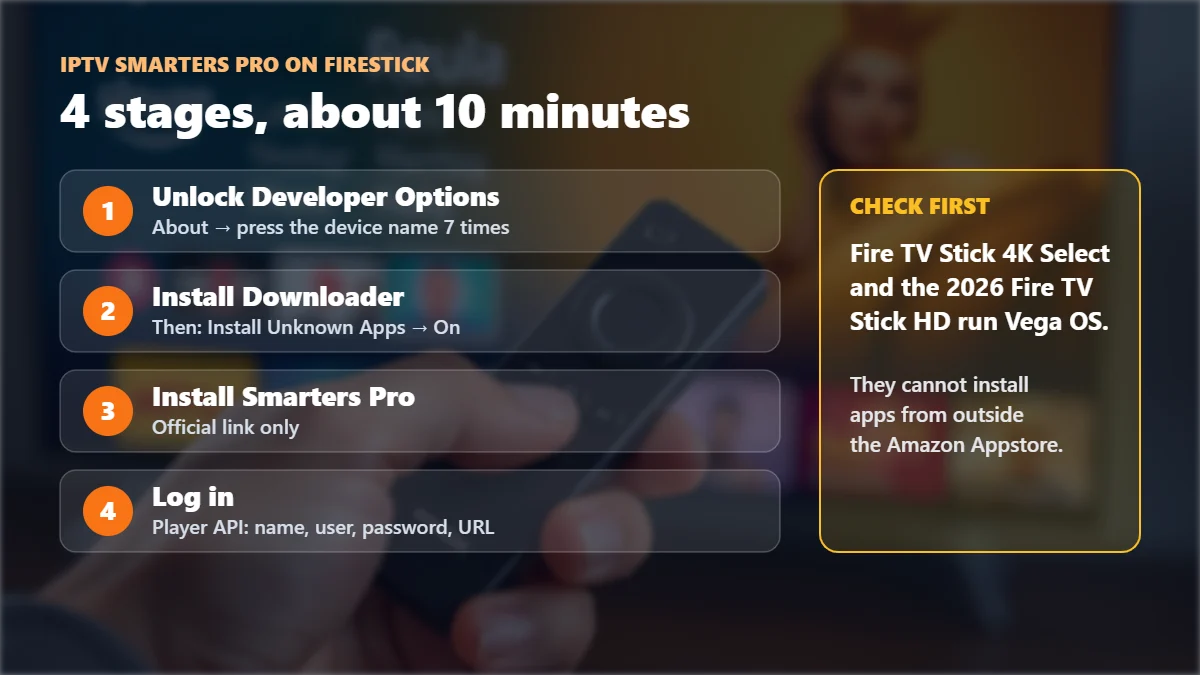
This is the step most guides skip. Since late 2025, Amazon has been moving its new sticks to a new system called Vega OS, which only installs apps from the Amazon Appstore. On those models, the method below does not work, no matter what a video tells you.
| Your device | Can install IPTV Smarters Pro? |
|---|---|
| Fire TV Stick 4K Max, 4K, 4K Plus, Lite, 3rd gen and older | Yes. Follow the steps below. |
| Fire TV Cube, Fire TV smart TVs (Fire OS) | Yes. Follow the steps below. |
| Fire TV Stick 4K Select (2025) and the new Fire TV Stick HD (2026) | No. These run Vega OS and block apps from outside the Appstore. |
Not sure which model you have? Go to Settings → My Fire TV → About. The device name is at the top of the list (Amazon shows every current model on its Fire TV page).
Step 1: Unlock Developer Options
Stuck point #1. On recent Fire OS versions, Developer Options is hidden. Here is how to reveal it:
- Open Settings (the gear icon on the right of the home screen).
- Go to My Fire TV → About.
- Highlight your device name (for example “Fire TV Stick 4K Max”) and press the center button 7 times.
- A message says you are now a developer. Press Back once: Developer Options now appears in the My Fire TV menu.
Step 2: Install the Downloader app
- On the home screen, open Find → Search and type Downloader.
- Choose the orange Downloader app by AFTVnews and click Get. It is free and comes from the Amazon Appstore.
- Go back to Settings → My Fire TV → Developer Options → Install Unknown Apps.
- Find Downloader in the list and switch it On.
Stuck point #2 is this switch. If you skip it, the download finishes but the install button never appears.
Step 3: Download and install IPTV Smarters Pro on Firestick
- Open Downloader. Allow access to files if it asks.
- In the address box, type the download link for the official IPTV Smarters Pro app and press Go. Use only the official Smarters website or the link your provider gives you, never a random APK site.
- When the download finishes, choose Install, then Done.
- Downloader offers to delete the installer file. Choose Delete twice: the app stays installed, and you free up storage.
Not sure which link is the right one for IPTV Smarters Pro on Firestick? Ask your provider’s support before downloading anything. Marinios IPTV customers can ask on WhatsApp at any time.
Step 4: Log in with your IPTV details
Open IPTV Smarters Pro on Firestick and accept the terms. Depending on the version, the first screen shows two main choices:
- Player API (called Login with Xtream Codes API in older versions): for a username, a password and a server URL. This is the most common option.
- Load your playlist or file/URL: for an M3U playlist link.
Choose Player API if your provider sent you a username and password. Then fill in the four fields:
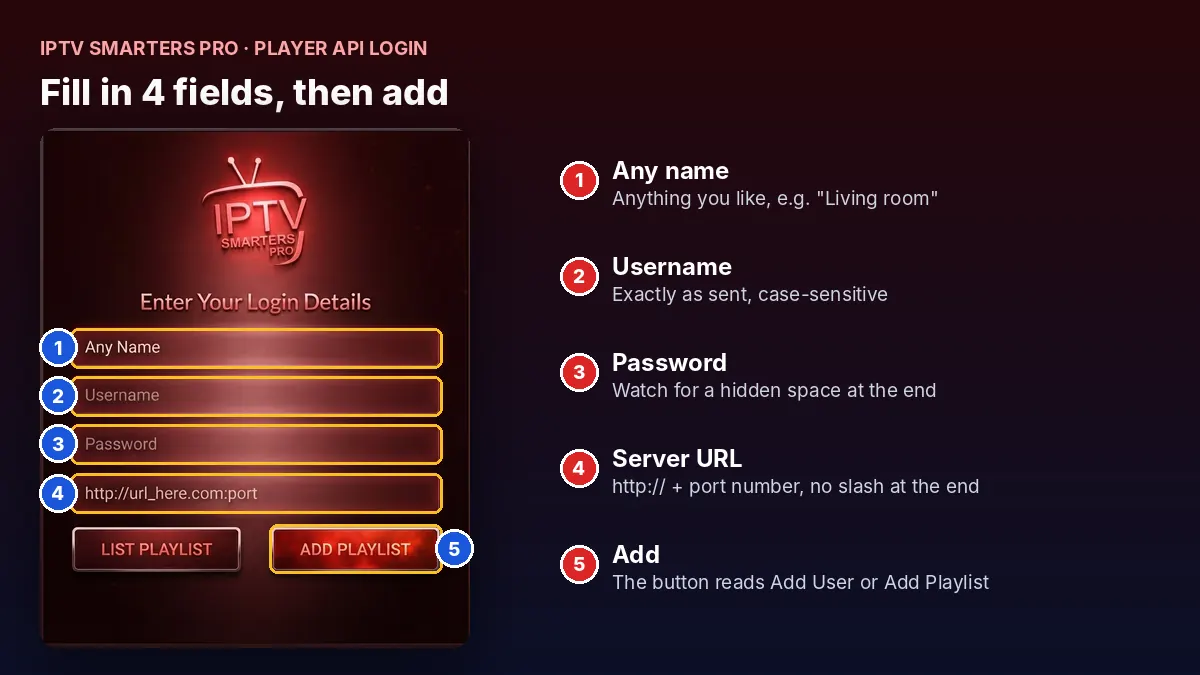
- Any name: anything you like, for example “Living room”.
- Username and Password: exactly as in your activation message. Both are case-sensitive.
- Server URL: including
http://and the port number, with no slash at the end. - Press Add User (or Add Playlist, depending on the version). The first load can take a minute.
If IPTV Smarters Pro on Firestick shows “Authorization failed” here, the cause is almost always a small typo in the URL or login. Our authorization fix guide solves it in a few minutes.
After you log in: a quick tour
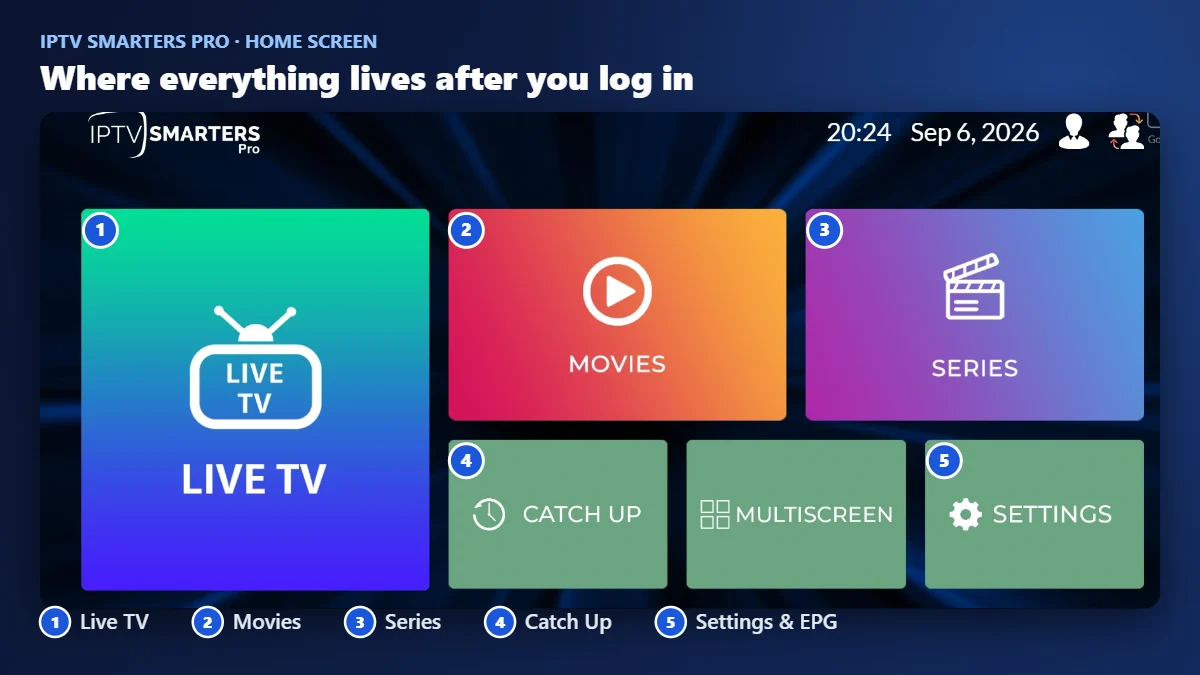
- Live TV: all channels, sorted by country and category. Open it once and let the TV guide load.
- Movies and Series: the on-demand library. Use the search icon instead of scrolling.
- Catch Up: replays on the channels that support it.
- Settings: player options and the TV guide (EPG). If the guide is empty, refresh it here or ask your provider for the EPG link.
After you install IPTV Smarters Pro on Firestick: make it run smoothly
- Put the app on your home screen: go to Settings → Applications → Manage Installed Applications, or long-press the app and choose Move.
- Use a cable if you can. An Ethernet adapter for the Firestick fixes most buffering on busy evenings.
- Check your speed on the TV itself. Around 25 Mbps per screen is comfortable for 4K. Our 20-minute speed test shows how to measure it properly.
- Organize your list once. Add favorites and hide countries you never watch, as explained in our channel list guide.
Fixes for the problems people see most
| What you see | Most likely cause | What to do |
|---|---|---|
| No Install button after the download | Install Unknown Apps is off for Downloader | Repeat Step 2, part 3 and 4 |
| “App not installed” or a parse error | Broken or wrong file | Delete it and download again from the official link |
| “Authorization failed” | Typo in the URL or login, or an expired account | Follow our 7-step fix |
| The TV guide is empty | EPG not loaded yet | Open Live TV, wait a minute, then refresh the guide in Settings |
| Buffering in the evening | Weak Wi-Fi or a busy network | Use Ethernet, or choose the HD version of the channel |
| Developer Options does not appear | The 7 presses were too slow, or it is a Vega OS stick | Press the device name 7 times quickly; check the model in Step 0 |
Update or move IPTV Smarters Pro on Firestick later
Getting IPTV Smarters Pro on Firestick is a one-time job, but two questions come back to our support every month: how to update IPTV Smarters Pro on Firestick, and what to do when the family buys a new stick. Both are quick if you know the order.
Updating the app
- Write down your login details first (username, password, server URL). An update should keep them, but a clean reinstall will not.
- Open Downloader and get the newest version from the same official source you used the first time.
- Install it over the old one. Choose Install, not Uninstall, so your playlists and favorites stay.
- Open IPTV Smarters Pro on Firestick and check that live TV, the guide and your favorites are still there.
Moving to a new Firestick
- To set up IPTV Smarters Pro on Firestick again, follow this guide from Step 0 on the new stick. Settings do not transfer between devices.
- Log in with the same details. If your plan covers one screen, close the app on the old stick first, or the new one may be refused.
- Remove the old stick from the TV, or uninstall the app on it, so nobody in the house uses a second screen by accident.
If you watch on more than one TV at the same time, a 2, 3 or 4-screen plan avoids the “too many devices” problem entirely. Running IPTV Smarters Pro on Firestick in the living room and on a phone in the kitchen counts as two screens.
Prefer a different player?
Wondering how to install IPTV on Firestick with another app? The same Downloader method you used for IPTV Smarters Pro on Firestick works for most player apps: only the download code changes.
IPTV Smarters Pro on Firestick is not the only option. IBO Player Pro is popular on smart TVs and Android boxes, and both apps offer a 7-day free trial. Our IPTV player comparison helps you choose.
Still choosing which service to put on your stick? Read best IPTV for Firestick for a 6-point scorecard, and test any provider with a free 24-hour trial first.
Still buffering? Our IPTV buffering fix finds the cause in 2 minutes and walks you through 6 fixes, from Wi-Fi to the provider.
Still need the service itself? Our IPTV Smarters Pro subscription guide explains what to buy, fair prices and the checks to run first.
Quick questions
Is IPTV Smarters Pro free?
The app is free to install and comes with a trial period. You still need an IPTV subscription, because the app only plays the channels your provider gives you.
Why can’t I find IPTV Smarters Pro in the Amazon Appstore?
Availability changes by country and over time. Search the Appstore first. If the official app is not listed, use the Downloader method above.
Can I use the same login on two Firesticks?
Only if your plan includes two or more devices, and only up to that number at the same time.
Player API or M3U: which should I use?
Player API, if you have a username and password. It loads channels, movies, series and the TV guide in one go. Use M3U only if that is what your provider sent.
I have a Fire TV Stick 4K Select. What can I do?
That model cannot install apps from outside the Appstore. A Fire TV Stick 4K Max, an Android TV box, or a player app on a Google TV are simple alternatives.
Want the same app on your computer? See IPTV Smarters Pro on Windows & PC for the safe way to install it.
Fire TV and Firestick are trademarks of Amazon.com, Inc. or its affiliates. Android TV, Google TV and Google Play are trademarks of Google LLC. IPTV Smarters and IBO Player Pro are trademarks of their respective owners. Marinios IPTV is not affiliated with or endorsed by them.