
You type your login, press Add User, and IPTV Smarters answers with “Authorization failed” or “Authorization failed for above host”. The good news: this message almost never means the app is broken. It means the server refused the details it received, and the cause is usually something you can fix in a few minutes. If IPTV Smarters failed to authorize your login, follow the steps below in order.
In this guide
- What “Authorization failed for above host” means
- Find your cause in 30 seconds
- IPTV Smarters failed to authorize: the 7-step fix
- IPTV Smarters failed to authorize on Firestick, Android TV or iPhone
- The server URL: right and wrong, side by side
- Errors that look like “failed to authorize” but are not
- Still not working? Send support these 5 details
- Quick questions
Quick answer: most authorization errors come from one of three things — a small mistake in the server URL, a mistyped username or password, or an account that is expired or already in use on too many devices. Check those three first, in that order.
What “Authorization failed for above host” means
This longer version of the message appears when IPTV Smarters reaches the server address you typed, but the server refuses the login. In other words, the app found a server, and that server said no. That is why the fix is almost always in the details you entered or in the account itself, not in the app.
Two situations cause it most often: the server URL points to the right place but has a small mistake (a missing port, an extra slash), or the username and password are valid but the account is expired or already in use on the maximum number of devices. Steps 1 to 4 below cover both.
Find your cause in 30 seconds
Match what you see on screen to the most likely reason IPTV Smarters failed to authorize, then jump to the right step:
| What you see | Most likely cause | Go to |
|---|---|---|
| Error on the very first login | Server URL or login typed incorrectly | Steps 1–2 |
| Worked yesterday, fails today | Subscription expired, or another device is connected | Steps 3–4 |
| Works on your phone, fails on the TV | Device clock, old app version or cached data | Steps 5–6 |
| Fails on Wi‑Fi, works on mobile data | Router or internet provider filter | Step 7 |
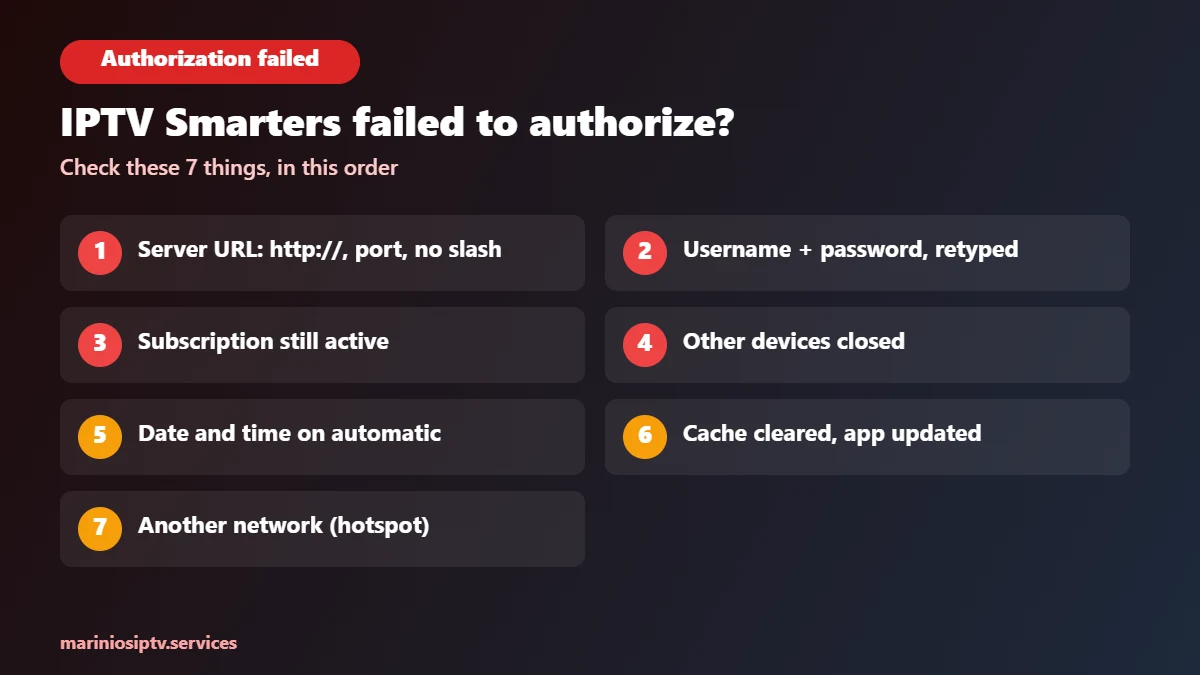
IPTV Smarters failed to authorize: the 7-step fix
1. Check the server URL character by character
The URL must match your activation message exactly: it starts with http://, ends with the port number (for example :8080), and has nothing after it. A slash at the end, a space, or https instead of http is enough to trigger the error.

2. Retype your username and password by hand
Both are case-sensitive, and copy‑paste or keyboard autocomplete often adds an invisible space at the end. Delete the fields completely and type them again slowly. On a TV remote, double-check letters that look alike, such as l and I, or 0 and O.
3. Confirm your subscription is still active
When a plan expires, the server rejects the login with the same message, so IPTV Smarters failed to authorize even though everything is typed correctly. Check the expiry date in your activation message or ask support. Reinstalling the app will not help if the account itself has ended.
4. Close the app on your other devices
Each plan allows a fixed number of simultaneous connections. If a phone, a second TV or a family member is already watching, a new device can be refused. Close the app everywhere else, wait one minute, then try again. If you regularly watch on more screens, a 2, 3 or 4-device plan removes the problem.
5. Set the device date and time to automatic
A clock that is wrong by even a few minutes can make secure connections fail. On Firestick and Android TV, open Settings → Date & time and turn on automatic time.
6. Clear the cache and update the app
On Firestick: Settings → Applications → Manage Installed Applications → IPTV Smarters → Clear cache. On Android TV the path is similar under Settings → Apps. Then install the latest version from your device’s official app store or the official IPTV Smarters website, because old versions can fail with newer server setups.
7. Test on another network
Connect the device to your phone’s hotspot and log in again. If it works there, something on your home network is filtering the connection — often a security or parental-control feature in the router or in your internet account. Check those settings, or contact your internet provider.
IPTV Smarters failed to authorize on Firestick, Android TV or iPhone
- Firestick: typing with the remote causes most errors. Use the on-screen keyboard slowly, and check the URL field twice. Our Firestick install guide shows exactly where each detail goes.
- Android TV and Google TV: after an app update, clear the cache once before logging in again (step 6).
- iPhone and iPad: make sure you installed the official app from the App Store and that iOS has not auto-filled a saved password into the field.
- Smart TVs: some players on Samsung and LG use an M3U link instead of a login. See our Samsung TV guide.
The server URL: right and wrong, side by side
When people send us a screenshot of this error, the server URL is the culprit more often than anything else when IPTV Smarters failed to authorize. It is a short line, and one character out of place is enough to get “IPTV Smarters failed to authorize” on screen. Here is what to compare, using a made-up address as the example:
| What was typed | What is wrong | Correct version |
|---|---|---|
http://example-server.com | Port missing | http://example-server.com:8080 |
http://example-server.com:8080/ | Extra slash at the end | http://example-server.com:8080 |
https://example-server.com:8080 | https instead of http (unless your provider says https) | http://example-server.com:8080 |
http://example-server.com:8080 | Invisible space after the port | Delete the field and type it again |
http://example-server.com:8O80 | Letter O instead of zero | http://example-server.com:8080 |
The real address and port are the ones in your own activation message. Copy them exactly. Most cases of IPTV Smarters failed to authorize end right here, and if your provider gave you a backup URL, try that one too before you change anything else.
Errors that look like “failed to authorize” but are not
The wording changes a little between app versions, so it helps to know which message points where. If you see something other than “Authorization failed”, it is not a true IPTV Smarters failed to authorize error, and the fix is often different:
- The app spins and then shows a connection or network error. The app never reached the server. Check your internet first, then the server address. Step 7 applies.
- Login works, but channels will not play. That is not an authorization problem. Try the other stream format in the player settings, or read our M3U playlist guide.
- Login works, the TV guide is empty. The account is fine; the guide has not loaded. See our EPG guide.
- Everything plays, but it keeps freezing. That is buffering, usually the Wi-Fi. Our buffering fix covers it.
Only the message that says the server refused the login is the true “failed to authorize IPTV Smarters” case, and steps 1 to 4 above solve most of those.

Still not working? Send support these 5 details
If IPTV Smarters still failed to authorize after all seven steps, support can solve it much faster when your first message includes:
- Your device (for example Firestick 4K, Samsung TV, Android box)
- The IPTV Smarters version (shown in the app’s settings)
- A photo of the exact error message
- The time it happened
- Whether the same login works on another device
Your server URL, username and password come from your IPTV provider. If they keep failing, ask your provider; our IPTV service providers guide shows what good support looks like. Setting up on a stick? See best IPTV for Firestick.
Still buffering? Our IPTV buffering fix finds the cause in 2 minutes and walks you through 6 fixes, from Wi-Fi to the provider.
Looking for a login that works in Smarters from the first try? Read our IPTV Smarters Pro subscription guide.
Quick questions
Can a VPN cause IPTV Smarters failed to authorize?
It can. Some servers refuse connections from certain VPN addresses. Turn the VPN off, log in once, and see if IPTV Smarters failed to authorize disappears.
Is “failed to authorize IPTV Smarters” a problem with the app itself?
Rarely. The app is only passing your details to the server. When IPTV Smarters failed to authorize, the URL, the login or the account status is the cause in almost every case.
Why does IPTV Smarters say failed to authorize?
Because the server refused the login details it received. A small typo in the server URL, a mistyped password, an expired subscription or too many devices online are the usual causes.
Will reinstalling the app fix it?
Only if the cache was corrupted. In most cases the login details or the account status are the real cause, so check steps 1–4 first.
Can I use the same login on two TVs?
Only if your plan includes two or more devices, and only up to that number at the same time.
Why does it work on my phone but not on my TV?
Usually a typo on the TV keyboard, an old app version or a wrong clock on the TV. Steps 2, 5 and 6 cover all three.
New to Marinios IPTV? Your server URL, username and password arrive in your activation message, and the free 24-hour trial lets you check the setup on your own device before choosing a plan.
Fire TV and Firestick are trademarks of Amazon.com, Inc. or its affiliates. Samsung and Smart TV are trademarks of Samsung Electronics. LG and webOS are trademarks of LG Electronics. Apple TV, iPhone and App Store are trademarks of Apple Inc. Android TV, Google TV and Google Play are trademarks of Google LLC. IPTV Smarters is a trademark of its respective owner. Marinios IPTV is not affiliated with or endorsed by them.