
Here is something we see every week on WhatsApp: a customer has a laptop on the desk, a big monitor, sometimes a PC already plugged into the TV, and they still assume IPTV is “a Firestick thing”. It isn’t. IPTV Smarters Pro on Windows, or another good player on your PC, turns any Windows 10 or Windows 11 computer into a full live TV setup in about ten minutes. This guide shows how to get IPTV Smarters Pro for Windows safely, which free players are worth your time if you prefer something else, and the small PC settings that decide whether 4K plays smoothly or stutters.
Quick answer: Yes, you can use IPTV Smarters Pro on Windows 10 and 11: download it only from the developer’s official site or an official store listing, then sign in with the Player API details from your provider. Good free alternatives are MyIPTV Player (Microsoft Store), VLC for a quick test, and Kodi with IPTV Simple Client for a full TV guide.
Key takeaways
- The IPTV Smarters Pro Windows app is a player. It has no channels of its own; your IPTV subscription provides them.
- Download Smarters only from the developer’s official website or an official store listing. Random “PC version” download sites are where the trouble starts.
- Free alternatives work well on a PC: VLC for a quick test, MyIPTV Player from the Microsoft Store, and Kodi with the IPTV Simple Client for a full TV guide.
- For 4K, use a cable instead of Wi-Fi when you can and keep hardware video decoding switched on.
In this guide
Can you use IPTV Smarters Pro on Windows?
Yes. IPTV Smarters Pro started on phones and TV boxes, but its developer has also offered a desktop build for Windows, and that is the version most people mean when they search for IPTV Smarters Pro Windows. It looks and works much like the Firestick app: you sign in with the details your provider sends, and live TV, movies, series and the TV guide load in separate sections.
Two things are worth knowing before you start. First, the Windows edition is not always updated at the same pace as the Android one, so a menu name or button may sit in a slightly different place. Second, because the app is popular, plenty of websites offer an “IPTV Smarters Pro for PC” download that has nothing to do with the developer. Those are the copies we would never install.
How to install IPTV Smarters Pro on Windows safely
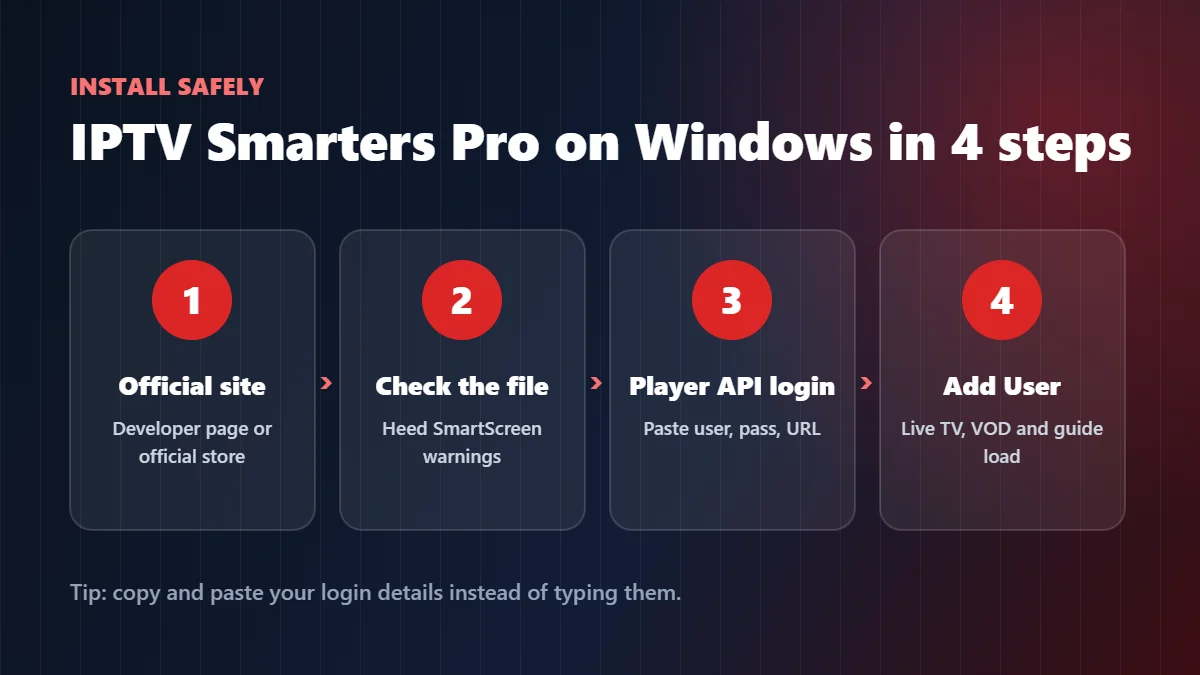
- Go to the developer’s official website and open its downloads section. If a Windows build is listed there, that is the file to use. If the developer lists the app in the Microsoft Store, that is just as good.
- Check the file before you open it. It should come straight from the official site, not from a mirror, a file-sharing page or a link sent in a chat. Windows SmartScreen or your antivirus will warn you about anything suspicious: do not click past that warning.
- Install and open the IPTV Smarters Pro Windows app. Accept the terms, then choose Login with Xtream Codes API (called Player API in some versions).
- Enter your details. Any name for the profile, then the username, password and server URL exactly as your provider sent them. Copy and paste them from the email or WhatsApp message instead of typing; one wrong character is the most common cause of a failed login.
- Click Add User and give it a minute. The first load of channels, movies and the guide takes the longest; after that, IPTV on PC opens in seconds.
Login refused? Our IPTV Smarters failed to authorize fix covers every cause we see in support, from an extra space in the URL to an expired trial. Setting up the TV in the other room as well? The same login works with our Smarters on Firestick guide, as long as your plan has enough screens.
Best IPTV player for Windows: 4 options that work
The IPTV Smarters Pro Windows app is a good choice, not the only one. If the Windows build will not install on your machine, or you simply prefer something else, these are the players our team actually uses on PCs. All of them are free to start, and here is how we would pick the best IPTV player for Windows for each kind of user.
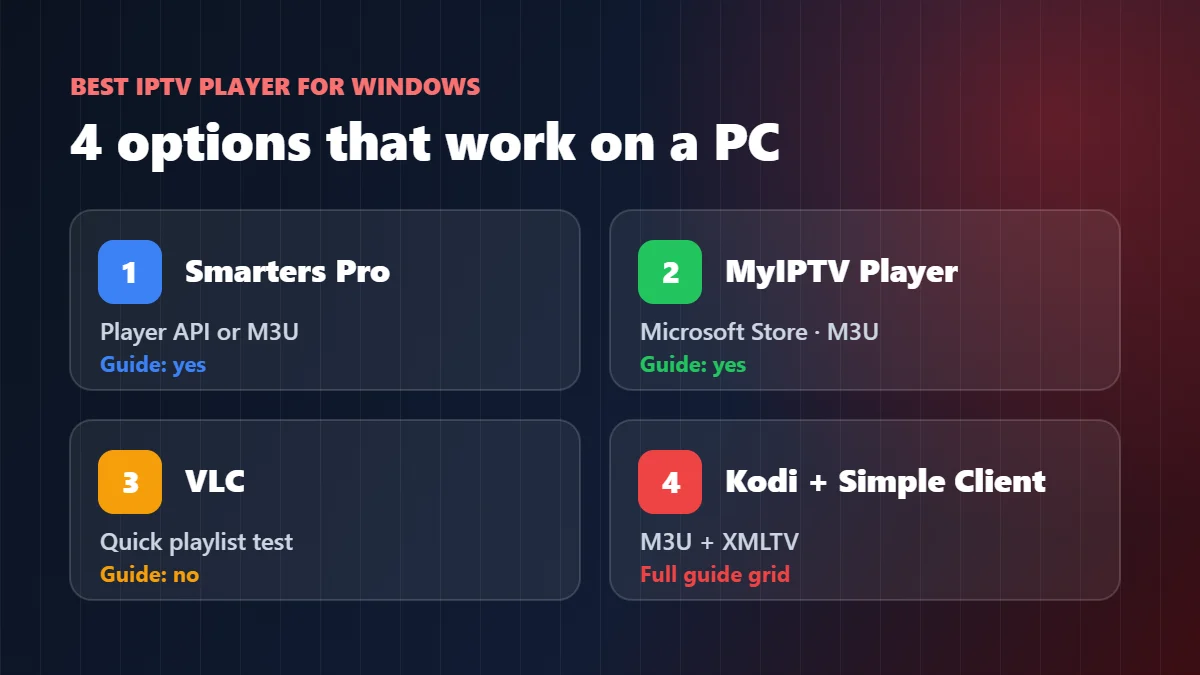
| Player | Where to get it | Login type | TV guide (EPG) | Best for |
|---|---|---|---|---|
| IPTV Smarters Pro | Developer’s official site or official store listing | Player API (Xtream) or M3U | Yes, loads with the login | People who already use Smarters on other devices |
| MyIPTV Player | Microsoft Store | M3U link | Yes, with a guide (XMLTV) link | A simple Windows app installed the safe way |
| VLC media player | videolan.org | M3U link | No proper guide | Testing a playlist in 30 seconds |
| Kodi + IPTV Simple Client | kodi.tv, add-on from Kodi’s own repository | M3U link | Yes, full TV guide grid | A living-room PC on the big screen |
MyIPTV Player: the easy Microsoft Store option
MyIPTV Player installs from the Microsoft Store like any other Windows app, which is exactly why we like it for less technical users. If you want the best IPTV player for Windows with the least risk, start here. In its settings you add a remote channel list (your M3U link), then the guide link if your provider gives one, and refresh. It is free to use, with optional paid extras. The interface is plain, but it is stable and fine for daily live TV.
VLC: the fastest way to test your playlist
VLC is the tool we ask customers to try when they are not sure whether the problem is the app or the service. Open VLC, choose Media → Open Network Stream, paste your M3U link and press Play. The channel list appears in the playlist view (Ctrl+L). There is no real TV guide and browsing thousands of channels is clumsy, so VLC is a test bench, not your everyday living room app.
Kodi with IPTV Simple Client: the most complete setup
Kodi is free, open-source media center software, and on a PC connected to a TV it feels like a real cable box. Install Kodi from its official website, then go to Add-ons → Install from repository → PVR clients → IPTV Simple Client. Add your M3U link and your guide (XMLTV) link in its settings, restart Kodi, and live TV appears with a full guide grid. Setup takes ten minutes the first time; after that it is the nicest way to watch IPTV on PC. Only install add-ons from Kodi’s own repository, the same rule as with any IPTV Smarters Pro Windows download.
Want to compare these with the apps for phones and TVs? Our best IPTV player apps guide covers every device, and our M3U playlist guide explains each part of the link these players ask for.
Watch IPTV on PC and send it to your TV
A lot of people who search for IPTV on PC really want it on the TV, and the best IPTV player for Windows will not help if the picture never leaves the laptop. A Windows laptop can do that two ways:
- HDMI cable. The most reliable option. Plug the laptop into the TV, press Windows + P and choose Duplicate or Second screen only. Picture and sound go through the cable with no delay.
- Wireless display. Many TVs support Miracast, which Windows calls Cast (press Windows + K). It is fine for movies, but it adds a short delay and can drop quality on busy Wi-Fi, so we do not recommend it for live sports.
If the PC will live next to the TV permanently, Kodi or Smarters on a small mini PC is a great setup. If not, a streaming stick is cheaper and simpler: see our best IPTV for Firestick guide.
PC settings for smooth 4K IPTV
When customers tell us their IPTV on PC stutters, the service is rarely the cause. These checks fix most cases:
| Check | Why it matters | What to do |
|---|---|---|
| Wired connection | Wi-Fi speed on a laptop swings a lot from room to room | Use an Ethernet cable or a USB Ethernet adapter for 4K |
| Internet speed | HD and 4K need steady speed, not just a good peak | Aim for 25 Mbps or more per 4K screen |
| Hardware decoding | Lets the graphics chip do the heavy work instead of the processor | Keep it on in the player’s video settings (VLC: Tools → Preferences → Input / Codecs) |
| Power mode | Battery saver slows the processor and video can drop frames | Plug in the charger and set Windows to Best performance |
| Background downloads | Updates and cloud sync eat bandwidth during the match | Pause Windows Update and cloud sync while watching |
| VPN | Some VPN servers are slow or far away | If you use one, pick a fast nearby server, or test with it off |
Still buffering after all that? Our IPTV buffering fix walks you through finding the cause in about two minutes.
Common problems with IPTV on Windows
“Windows protected your PC” message. That is SmartScreen doing its job, and you will see it often with IPTV Smarters Pro Windows files from unofficial sites. If the file came from the developer’s official site, you can check the publisher name before continuing. If it came from anywhere else, delete it.
Channels load but the TV guide is empty. The guide often needs its own link or a refresh. Our EPG guide explains how to fix an empty guide in each player.
The app worked yesterday and now says the account is invalid. Usually the trial ended, the plan expired, or another device is using your only screen. Check your plan before reinstalling anything.
Sound but no picture. Update your graphics driver from Windows Update or the PC maker’s site, then try switching hardware decoding off and on again in the player.
Which IPTV subscription works best on a PC?
Any IPTV on PC setup is only as good as the service behind it. Look for a provider that gives you both a Player API login (for Smarters) and an M3U link with a guide link (for VLC, MyIPTV and Kodi), so you can switch players without asking for new details. Our IPTV Smarters Pro subscription guide lists the six questions to ask before paying.
Marinios IPTV sends all of these with every plan: 55,000 live channels in HD and 4K, 250,000 movies and series, and a guide that loads by itself. Plans start at $15 for one month or $5 a month on the 12-month plan, and your PC counts as one screen, so a 2-screen plan covers the laptop and the living-room TV at the same time. You can test everything first with a free trial of up to 24 hours on WhatsApp. See the plans and prices or read our IPTV subscription guide.
Quick questions
Can IPTV work on a laptop?
Yes. Any Windows laptop can play IPTV with IPTV Smarters Pro, MyIPTV Player, VLC or Kodi, and you can connect it to a TV with an HDMI cable for the big screen.
Is IPTV Smarters Pro available for Windows 11?
The developer has offered an IPTV Smarters Pro Windows build that runs on Windows 10 and 11. Download it only from the developer’s official site or an official store listing, and if it will not install on your PC, MyIPTV Player or Kodi are good free alternatives.
What is the best free IPTV player for Windows?
For most people, the best IPTV player for Windows is MyIPTV Player from the Microsoft Store. For a TV-style guide on a big screen, Kodi with IPTV Simple Client. For a quick test, VLC.
Can I use the same IPTV login on my PC and my Firestick?
Yes, the same details work on both. To watch on both at the same time, your plan needs two or more screens.
Do I need an Android emulator to watch IPTV on PC?
No. Emulators work, but they are heavy and slow on many laptops. A native Windows player is lighter and more stable.
Is it safe to download IPTV Smarters Pro for PC?
The IPTV Smarters Pro Windows download is safe from the developer’s official website or an official store. Skip third-party download sites and never install a file someone sends you in a chat.
Want the same setup on the living-room TV? Our IPTV on Android TV guide covers Google TV and Android TV boxes.
IPTV Smarters and IPTV Smarters Pro are trademarks of their respective owner. Windows, Microsoft Store and SmartScreen are trademarks of Microsoft Corporation. VLC is a trademark of VideoLAN. Kodi is a trademark of the XBMC Foundation. Fire TV and Firestick are trademarks of Amazon.com, Inc. or its affiliates. MyIPTV Player is the property of its developer. Marinios IPTV is an independent IPTV provider and is not affiliated with or endorsed by any of these companies.