
Your IPTV provider sent you a long link that starts with http:// and ends with something like type=m3u_plus, and the setup guide says “paste your M3U playlist”. If you are not sure what that link is, what is inside it, or why it sometimes refuses to load, this guide explains it in plain language, with real examples you can check against your own link.
Quick answer: An M3U playlist is a text list of TV channels and their stream addresses. Your IPTV provider sends it as a link with your username and password, often ending in type=m3u_plus. You paste that link into a player app, which turns it into a channel list with a TV guide.
Key takeaways
- An M3U playlist is a simple text list of channels: a name, a few details, and the address of each stream.
- An IPTV M3U link contains your username and password, so treat it like a password.
- The same account usually works with an M3U link and with a Player API (Xtream) login. Player API is easier when your app supports it.
- Most “playlist not loading” problems come from a typo, an expired account or the wrong output type.
In this guide
- What is an M3U playlist?
- M3U URL vs M3U file: what is the difference?
- What an IPTV M3U link looks like
- What is inside the playlist
- M3U, m3u_plus and M3U8: three names people mix up
- Xtream Codes vs M3U: which login should you use?
- How to load an M3U playlist in popular players
- When the playlist will not load: quick fixes
- Test your M3U playlist in two minutes
- How to make an M3U playlist of your own files
- Why we never recommend free M3U playlists
- Keep your M3U link private
- Quick questions
What is an M3U playlist?
M3U is one of the oldest playlist formats on the internet. It started as a way to list music files for media players, and it is still just that: a plain text file where each entry points to something a player can open. IPTV uses the same idea, except each entry points to a live channel, a movie or an episode instead of a song.
You will also see M3U8. It is the same format saved in UTF-8, which lets channel names use accents and non-Latin alphabets. For you, M3U and M3U8 work the same way.
M3U URL vs M3U file: what is the difference?
This is the question behind most “my playlist won’t load” messages we get, so it deserves its own answer. The short version: an M3U file is the list itself, an M3U URL is the address where your player downloads that list.
What is an M3U URL?
An M3U URL is a web link that, when a player opens it, returns your playlist. It usually contains your server address, your username and password, and the playlist type. Almost every IPTV provider sends an M3U URL rather than a file, because the URL always returns the latest channel list: when a channel is added or fixed on the server, your player picks it up at the next refresh. You paste it in the “M3U URL”, “Playlist URL” or “Remote playlist” field of your app.
What is an M3U file (.m3u)?
An M3U file is a plain text file, ending in .m3u or .m3u8, that lists media addresses one after another. Open one in Notepad and you will see lines starting with #EXTINF (the name and details of each entry) followed by the address to play. The weakness of a saved file is that it never updates itself. If the provider changes a server, a saved .m3u file simply stops working, which is why we always recommend the URL.
How does M3U work?
Your player reads the list from top to bottom, shows each entry as a channel, and only opens a stream when you select it. The playlist itself is tiny, a few kilobytes to a few megabytes of text. The video never travels inside it; the list only tells the player where each channel lives.
| M3U URL | M3U file (.m3u) | |
|---|---|---|
| What it is | A link that returns the list | The list saved as a text file |
| Updates | Automatic at every refresh | Never, unless you download it again |
| Where you use it | “M3U URL” / “Playlist URL” field | “Load file” / “Local playlist” option |
| Our advice | Use this one | Only for a quick test |
What an IPTV M3U link looks like
Most providers do not send you a file. They send a link that generates the file for your account on demand. A typical one looks like this:
http://server-address:8080/get.php?username=YOURNAME&password=YOURPASS&type=m3u_plus&output=ts
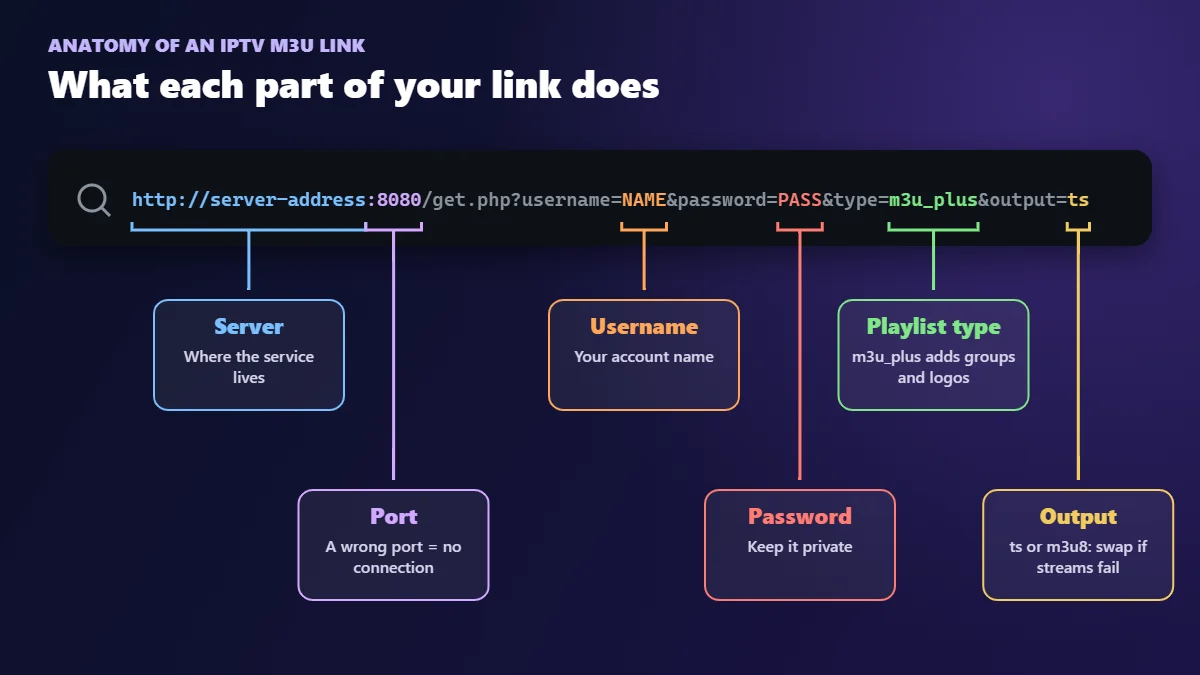
Each part has a job:
- Server address and port (
:8080): where your provider’s service lives. A wrong port is one of the most common typos. - Username and password: your account. This is why the link must stay private.
- type=m3u_plus: asks for the full playlist with channel groups and logos.
- output=ts or output=m3u8: the stream format. If channels load but will not play, switching between the two often fixes it.
What is inside the playlist
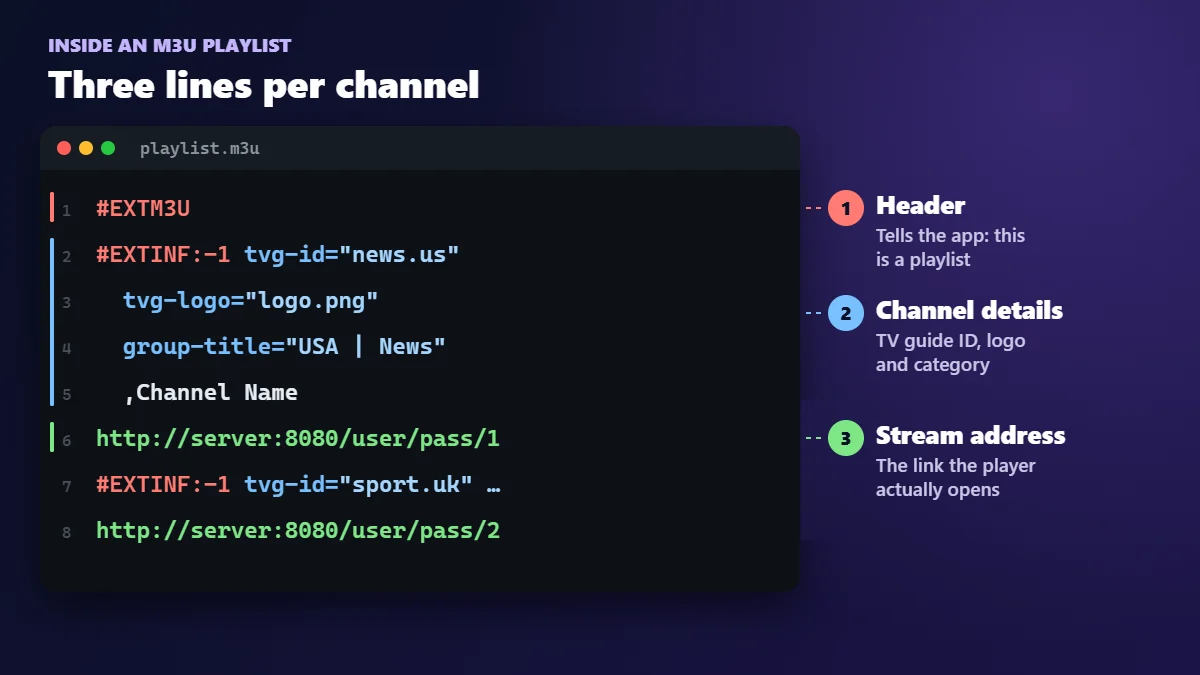
Open an M3U file in a text editor and you will see a pattern that repeats for every channel:
#EXTM3U#EXTINF:-1 tvg-id="news.us" tvg-logo="logo.png" group-title="USA | News",Channel Namehttp://server-address:8080/username/password/12345
- #EXTM3U on the first line tells the player “this is a playlist”.
- #EXTINF describes one entry: its name, its logo (
tvg-logo), its category (group-title) and its ID for the TV guide (tvg-id). - The next line is the stream address the player actually opens.
That is why the same playlist can look tidy in one app and messy in another: each player decides how to use the groups, logos and guide IDs.
M3U, m3u_plus and M3U8: three names people mix up
Half the messages we get about playlists start with “my provider says m3u_plus but the app wants M3U8, is that the same thing?” Fair question. The names look almost identical and mean different things.
| Name | What it really is | Where you see it |
|---|---|---|
| M3U | The playlist format itself: a plain text list of channels and their stream addresses | “Add M3U URL” in your player |
| type=m3u_plus | A setting inside your link that asks for the full M3U playlist, with groups, logos and guide IDs | Near the end of the link your provider sends |
| M3U8 | The same playlist idea saved in UTF-8 text, and the format used by HLS streams | output=m3u8 in the link, or .m3u8 files |
| output=ts | Asks for the streams as MPEG-TS instead of HLS | The very end of the link |
So when an app asks for an “M3U playlist” and your link says type=m3u_plus&output=ts, you have the right thing. Paste it as it is. Only change ts to m3u8 (or back) if the channels load but refuse to play.
Xtream Codes vs M3U: which login should you use?
Most IPTV accounts can be opened two ways: an M3U link, or a Player API login that many apps still call Xtream Codes. They reach the same channels, but the experience is different:
| M3U link | Player API (Xtream) | |
|---|---|---|
| What you enter | One long link | Username, password and server URL |
| Movies and series | Often mixed into one long list | Neatly split into Movies and Series |
| TV guide | Needs a separate EPG link in many apps | Usually loads automatically |
| Updates | Reload the playlist to see new channels | Updated by the app |
| Works in | Almost every player, including VLC | Apps that support it, such as IPTV Smarters Pro |
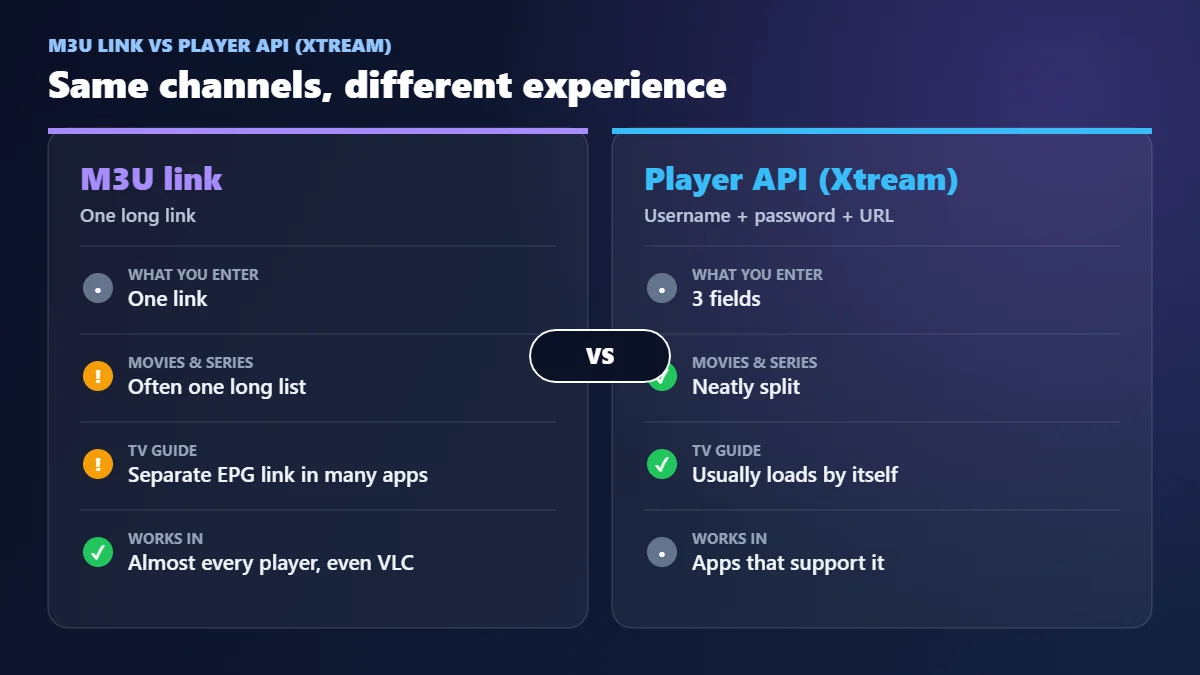
Our advice: use Player API whenever your app offers it. Keep the M3U link for apps that only accept playlists, such as IBO Player Pro, or for a quick test in VLC.
How to load an M3U playlist in popular players
How do I play an M3U file or link? Open an IPTV player, choose the M3U or “playlist URL” option, paste your link (or pick the saved file), give it a name and wait for the channels to load. The exact menu depends on the app:
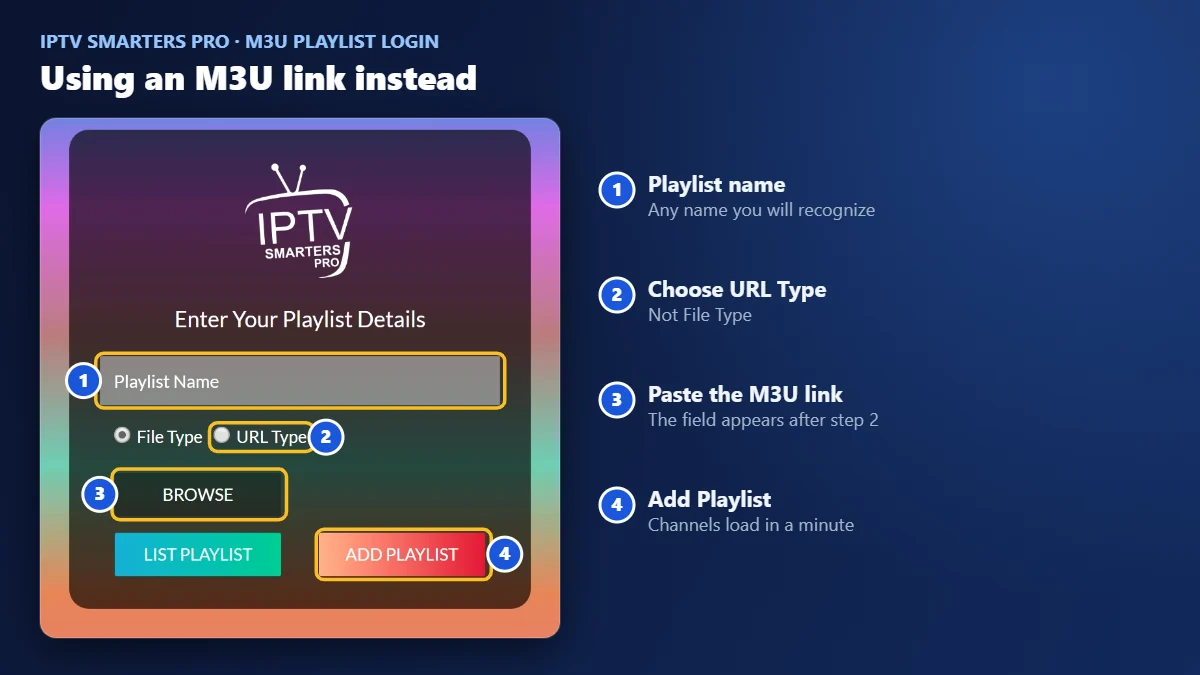
IPTV Smarters Pro
On the first screen, choose Load your playlist or file/URL, pick URL Type, give the playlist a name, paste your link and tap Add Playlist.
IBO Player Pro
Open the app on your TV and note the Device ID and Device Key. On your phone or computer, open the player’s official website, enter those two codes and add your M3U link as a new playlist. Restart the app on the TV. Our IPTV player comparison walks through it step by step.
VLC (quick test on a computer)
Open VLC, choose Media → Open Network Stream, paste the link and press Play. VLC has no TV guide and is not comfortable for everyday viewing, but it is a fast way to check that a link works before you set up your TV.
When the playlist will not load: quick fixes
| What you see | Likely cause | Fix |
|---|---|---|
| Error as soon as you add the link | Typo, missing http:// or wrong port | Copy the link again from your activation message, in one piece |
| Worked yesterday, empty today | Account expired or too many devices connected | Check your plan end date; close the app on other screens |
| Channel list loads, streams do not play | Output format not suited to the app | Change output=ts to output=m3u8, or the other way round |
| No logos or no TV guide | Basic playlist type, or no EPG link added | Use type=m3u_plus; add the EPG link your provider gives you |
| App freezes while loading | Very large playlist on a slow device | Use Player API instead, or hide categories you never watch |
Using IPTV Smarters and seeing “Authorization failed”? Our 7-step fix covers it.
Test your M3U playlist in two minutes
Before you spend an evening blaming your TV, check the link on a computer. It is the quickest way to know whether the problem is the playlist or the device.
- Install VLC media player on your computer from its official website.
- Open VLC, go to Media → Open Network Stream.
- Paste your M3U link and press Play.
- If the channel list appears and a few channels play, the playlist is fine. The issue is on the TV side: the app, the Wi-Fi or a typo when you typed the link there.
- If VLC shows nothing, copy the link again from your provider’s message. Do not retype it. Most failed links we see have one wrong letter or a missing port.
Still stuck after that? Our buffering fix covers playback problems, and the EPG guide explains an empty TV guide.
How to make an M3U playlist of your own files
People also ask how to create an M3U playlist themselves. You can, for your own videos and music, and it takes two minutes:
- Open Notepad (Windows) or TextEdit in plain-text mode (Mac).
- Type
#EXTM3Uon the first line. - For each item, add a line
#EXTINF:-1,Name you want to see, then on the next line the full path or web address of the file. - Save it as
myplaylist.m3uwith UTF-8 encoding, and open it in VLC or any player that accepts local playlists.
That is all a homemade M3U is. For live TV, there is nothing to build: your IPTV provider generates the playlist for your account, and you only paste the URL they give you.
Why we never recommend free M3U playlists
Search for an IPTV playlist and you will land on pages full of “free M3U links”. We get asked about them every week, and our answer does not change: skip them.
- They stop working within days, often in the middle of a game.
- Nobody knows who runs the server or what else the link connects to.
- The channels in them are usually shared without permission from the people who own them.
- There is no support. When it breaks, you are on your own.
A paid IPTV M3U playlist from a provider you can actually message is cheaper in the end than the hours lost chasing dead links. If you want to compare providers first, our best IPTV guide lists what to check.
Keep your M3U link private
Your link contains your login in plain text. If someone else gets it, they can use your connections, and your own screens may be refused. A few simple rules:
- Do not post it in groups, forums or screenshots.
- Do not paste it into random “playlist checker” websites.
- If you think it has leaked, ask your provider to change your password. The old link stops working immediately.
Your M3U link and Player API login are sent by your IPTV provider. Learn how IPTV service providers deliver channels, and compare plans in our IPTV subscription guide.
Quick questions
How do I find my M3U playlist URL?
It is in the activation message from your IPTV provider, usually next to your username and password. If you only received Xtream (Player API) details, ask support to send the M3U URL as well.
What does type=m3u_plus mean in an IPTV link?
It asks the server for the full M3U playlist with channel groups, logos and guide IDs, instead of a bare list of streams.
Is an M3U playlist the same as M3U8?
Almost. M3U8 is the same playlist idea saved in UTF-8, and it is also the format of HLS streams. Most IPTV players accept both.
Can I use one M3U playlist on Apple TV or Samsung?
Yes, in a player that supports M3U. See our Apple TV guide and our Samsung TV guide.
Where do I get an M3U playlist?
From your IPTV provider, usually in your activation message. Marinios IPTV customers can ask for their M3U link and their Player API details on WhatsApp at any time.
Is M3U the same as M3U8?
Practically, yes. M3U8 is the same format saved in UTF-8, which handles accents and non-Latin channel names better.
Can I edit my M3U playlist?
You can download it and edit it in a text editor, but most providers update their lists, so your edits are overwritten. Hiding categories inside your app is easier and lasts.
Is an M3U playlist free?
The format is free and open. A playlist is only as good as the service behind it: free lists found online are usually unstable and are often shared without permission.
Does an M3U link include the TV guide?
Not always. Some apps read it from the playlist, others need a separate EPG link. With Player API, the guide usually loads by itself.
On a PC, VLC, MyIPTV Player and Kodi all open M3U links: see our IPTV on PC guide for each one step by step.
VLC is a trademark of VideoLAN. IPTV Smarters, IBO Player Pro and other app names are trademarks of their respective owners. Marinios IPTV is not affiliated with or endorsed by them.